Why Are Your Email Placeholders Showing Fallback Text Instead of Contact Data?
Last updated: April 13, 2026
When sending personalized email campaigns, placeholders are used to automatically insert contact-specific details (like a company name or first name) into your messages. If those placeholders aren't pulling in the right data, it usually comes down to a naming mismatch between your placeholder and your contact list.
Why does this happen?
Each placeholder you use — for example, {custom_company_name:{company_name:your company}} — works by searching your contact data for a field with that exact name.
Here's the order it follows:
It first looks for
custom_company_nameIf that's not found, it looks for
company_nameIf neither exists, it falls back to the default value — in this case, "your company"
So if you're seeing fallback text in your sent emails, it means none of the field names in your placeholder matched a column in your contact list.
How to fix it
You have two options:
Update your placeholder: Change the placeholder to match the exact column name in your CSV. For example, if your CSV has a column called
Company Name - Cleaned, update your placeholder to:{Company Name - Cleaned}Rename your CSV column: Rename the column in your CSV to match your existing placeholder. For instance, rename
Company Name - Cleanedtocompany_name, and your placeholder{company_name}will work as expected.
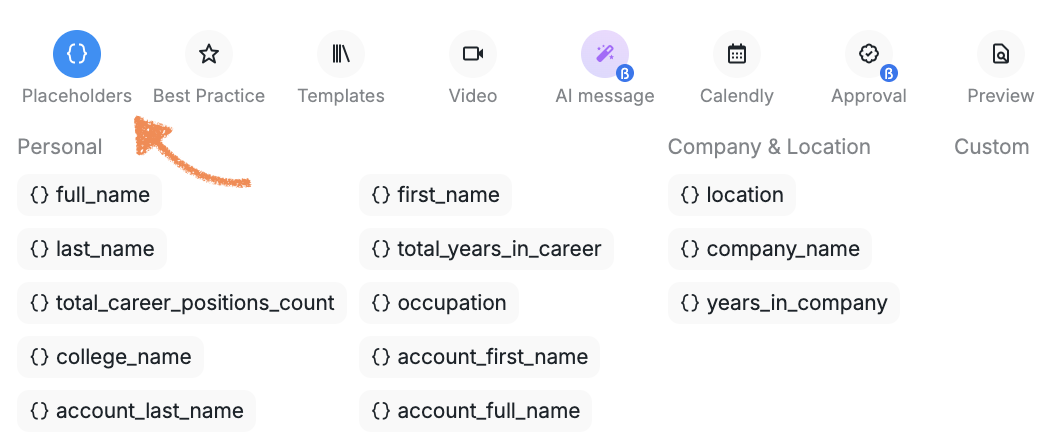
For the smoothest experience, we recommend using the platform's built-in default placeholders wherever possible. These are pre-configured to map reliably to standard contact fields, reducing the chance of mismatches.
⚠ Important: Placeholder names are case-sensitive and must match your CSV column headers exactly — including spaces, capitalization, and any special characters.