Using Voice Notes in Your Inbox
Last updated: October 14, 2026
In addition to sending voice notes through campaigns, you can send them directly to a prospect from your Inbox — handy for one-off conversations where you want to add a personal touch on the spot.
Please note that you can only send a voice note after sending at least one text message to the prospect. Voice notes cannot be used as the first message in a conversation.
Head to the Inbox tab and open a conversation with the prospect you'd like to reach. Click the microphone icon, and you'll see three options:
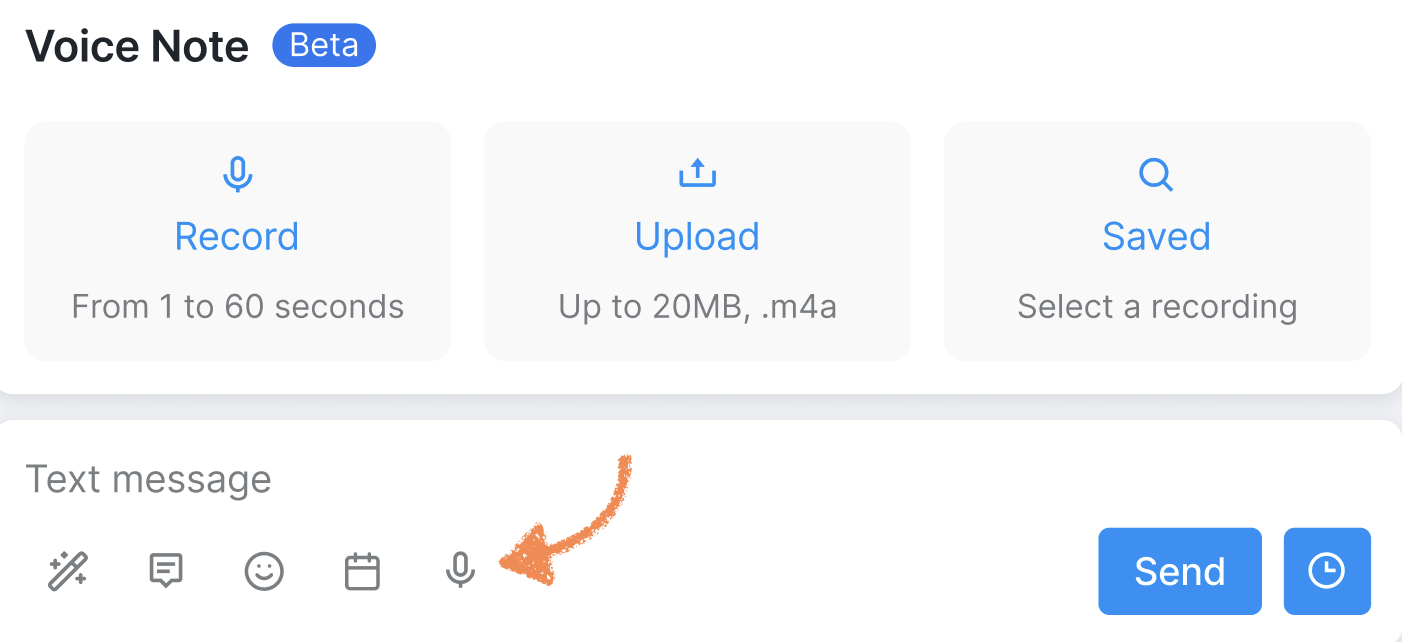
Record a new voice note on the go,
Upload a recording from your device,
Saved — choose from the voice notes already stored in your Resources.
Tip: When browsing your saved notes, click on any recording to play it back and make sure you're selecting the right one.

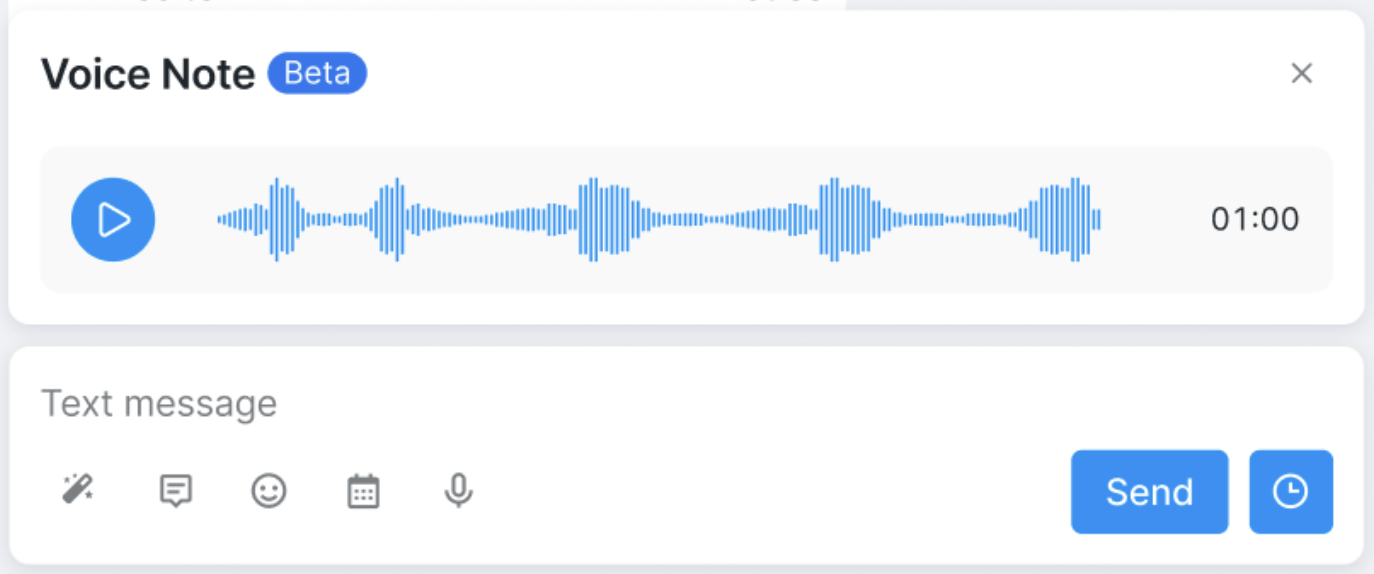
Once you're ready, you can send the voice note right away or schedule it for later by clicking the clock icon:
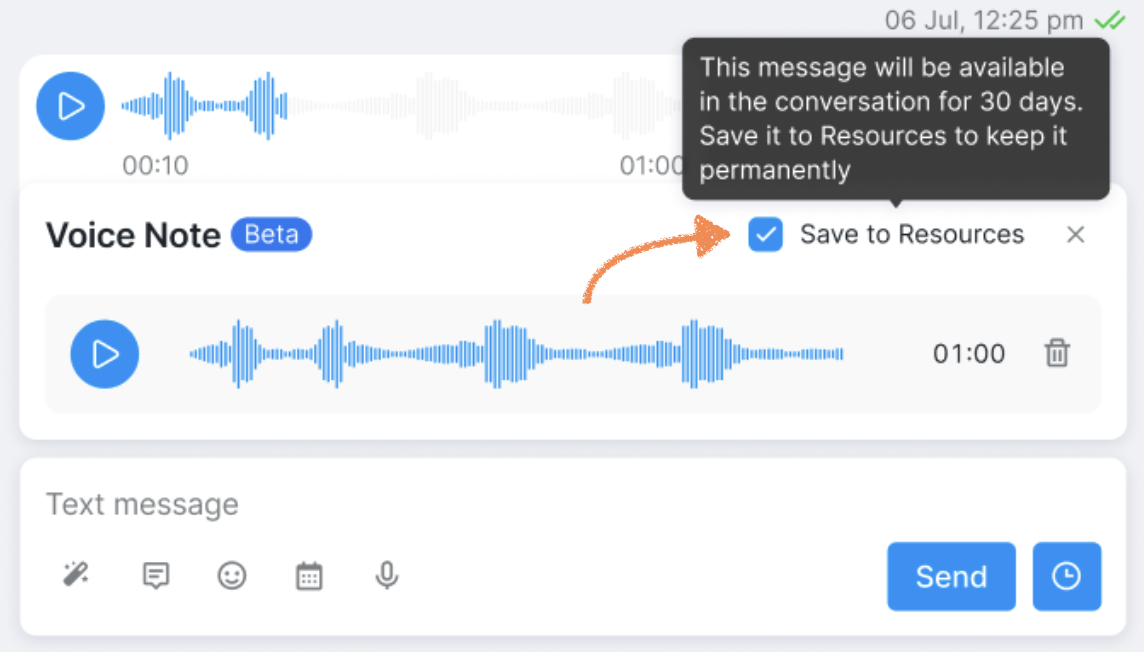
If you're opting to record a new voice note or upload one from your device when in the inbox, that voice note won't be automatically saved to Resources and will be deleted in 30 days. If you want to add it to your collection, tick the corresponding box before sending:
If you run into any issues or have questions along the way, our Customer Support team is always happy to help. Happy outreach!