Creating AI Mailboxes
Last updated: October 20, 2026
Once you have available domains, you can begin creating mailboxes. In the Active Mailboxes section, click Create.
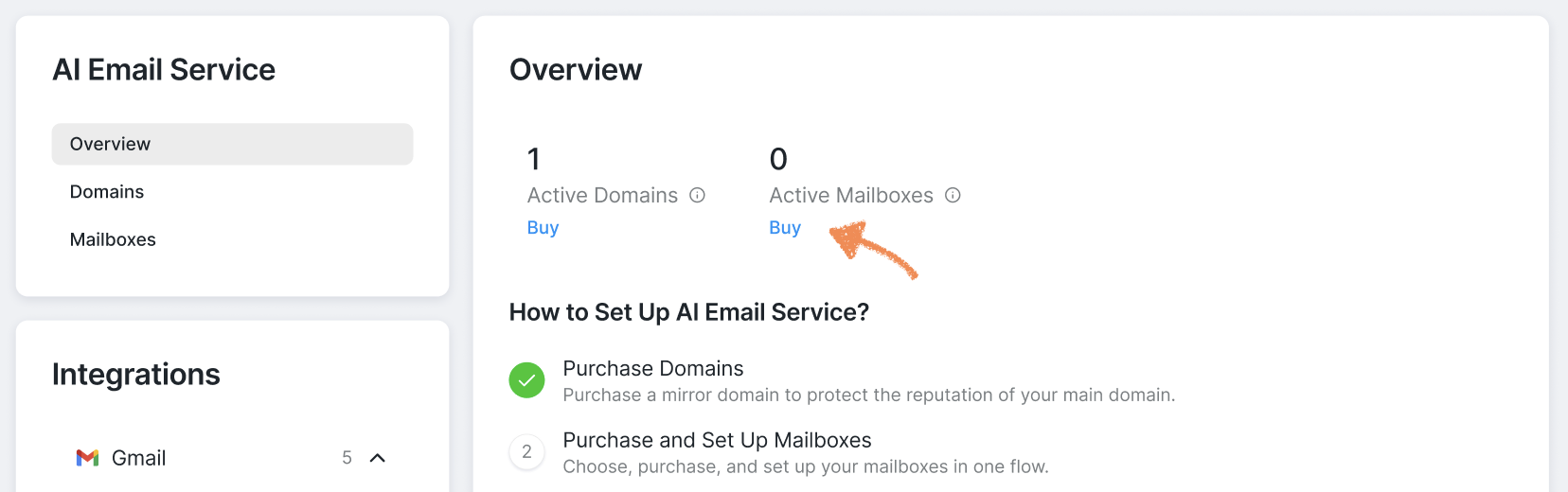
When setting up your mailbox, you need to:
enter first and last name: this is what your sender name is going to be, i.e. what shows up in the prospect's mailbox
enter email prefix: a prefix is the first part of your email, e.g. abc in abc@mail.com
select a domain: from the dropdown list, select a domain you want to use for this mailbox.
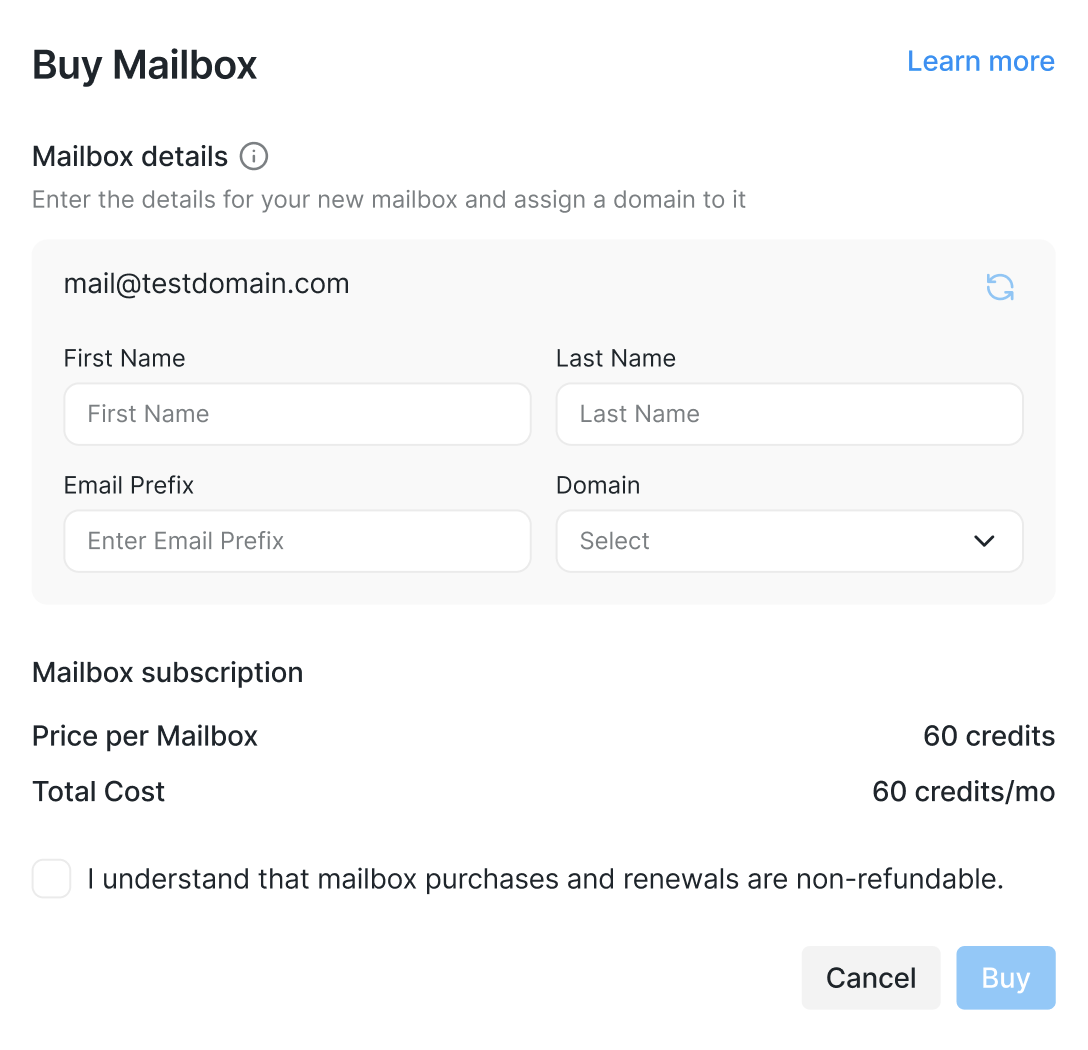
Further down, check the price of your mailbox subscription and proceed to purchasing.
Please note that mailbox purchases and renewals are non-refundable.
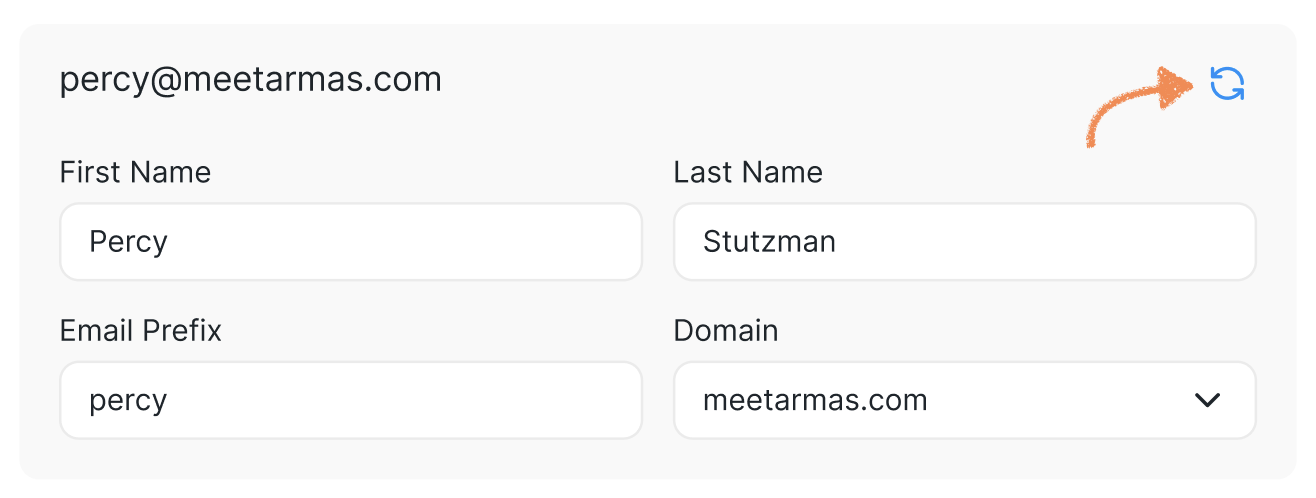
💡 You can regenerate a name for your mailbox by clicking the refresh icon.
Once created, navigate to the Mailboxes tab to review all mailboxes. You can also create additional mailboxes directly from this tab using the same process.
Mailboxes created with the AI Email Service are linked to your Social Account, while domains are shared across the entire workspace. This means multiple Social Accounts within the same workspace can create mailboxes using the same pool of domains.