How to Edit Videos
Last updated: April 14, 2026
In this article, we’ll walk you through how to edit a Video you’ve already recorded and what you can update.
How to Find Your Video
To see all your recorded and uploaded videos, go to Resources > My Videos. You’ll find a list of all your videos there.
Locate the one you’d like to edit, click the three-dot menu next to it, and select Edit:

What You Can Edit
Once you’re inside the video editor, here’s what you can update:
Video Name
You can rename your video at any time.
Click the small pencil icon next to the video name:

Edit the name and click the checkmark to save:

Page Section Toggles & Video Sync
When recording your video, you scrolled through different sections of your prospect’s social page. In this section, you’ll see the corresponding toggles for those page sections:

You can replay the video and check whether the scrolling matches what you’re talking about. If something feels slightly off, simply drag the toggles to better align the visuals with your speech:

In this same section, you can also:
Adjust the avatar size
Change the overall scroll speed
Choose whether to mirror your avatar video
Text, CTA & Settings
On the right-hand side, you’ll see the familiar fields you filled out during setup. Everything here is fully editable:
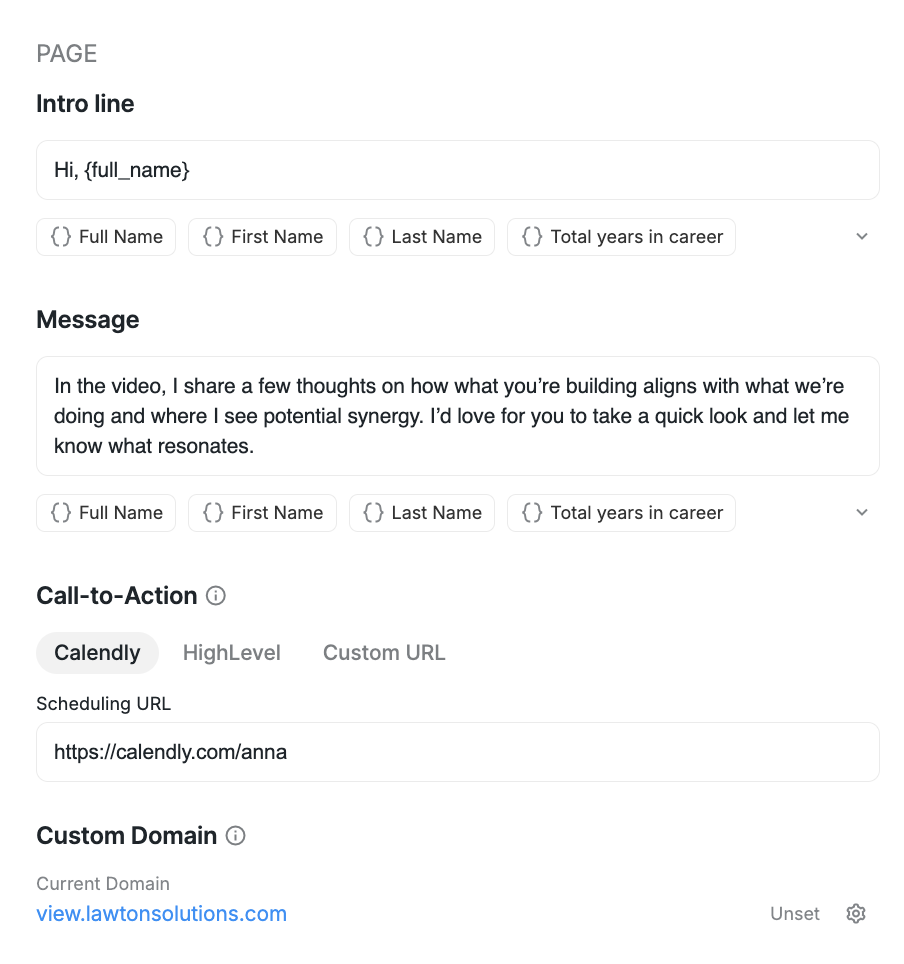
You can:
Update the text content
Change your CTA or scheduling button settings
Modify the custom domain if needed
Don’t Forget to Save
Once you’re done making changes, click Save in the top-right corner.
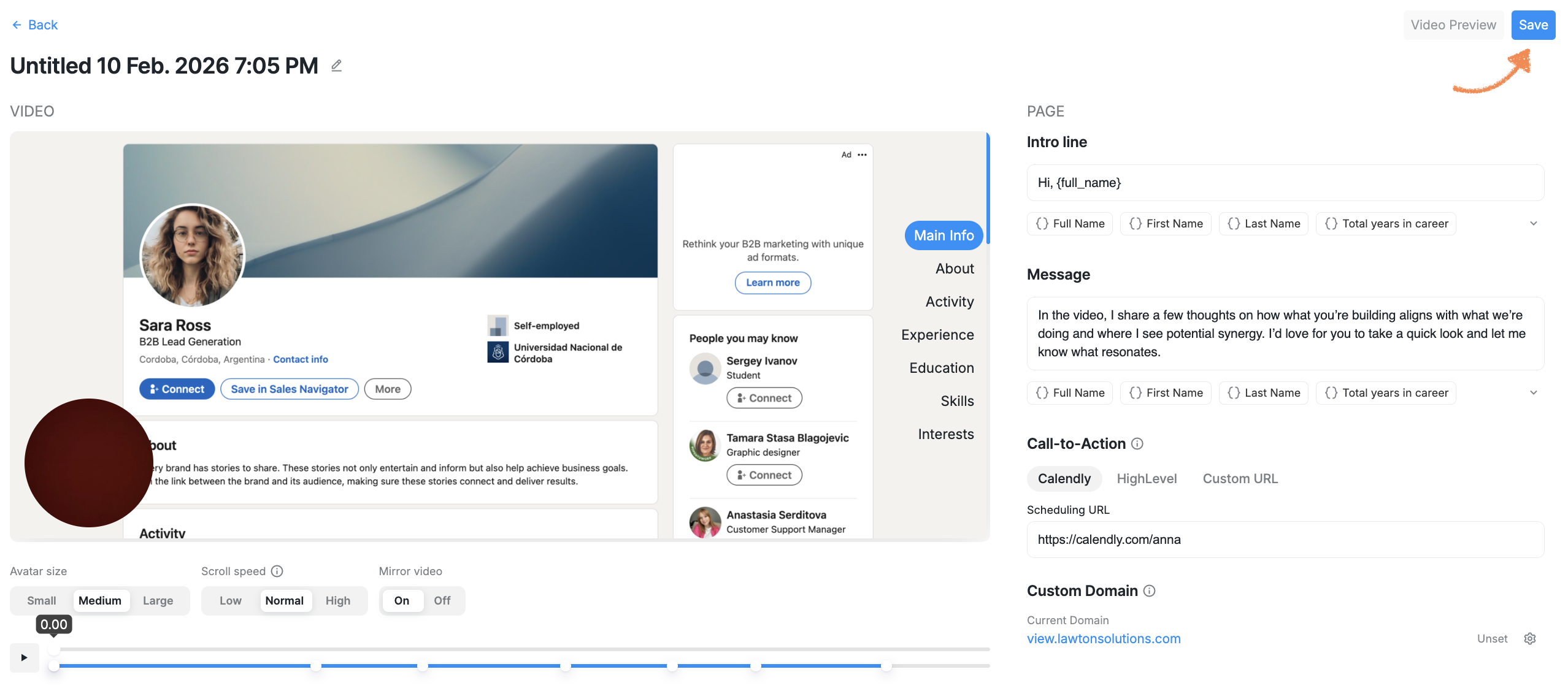
After saving, the Video Preview button will become available so you can review your updated video before sharing it.
If you ever need to fine-tune your video again, you can come back and edit it anytime. A quick review and small adjustments can make a big difference in how personal and polished your message feels.