How to Keep Track of Prospect Activity with the Activity Log
Last updated: August 19, 2026
When you’re working on the platform, a lot can happen around a prospect. You or your teammates might send messages and emails, prospects can reply or engage with your outreach, and campaigns can trigger additional actions.
When multiple people are working in the same workspace, keeping track of who did what — and when — can quickly get confusing. That’s where the Activity Log comes in.
The Activity Log gives you a clear timeline of activity for your prospects, so you can easily see what happened, when it happened, and who performed the action.
Where to find the Activity Log
View activity across your workspace
To get a broader overview of prospect activity, go to Dashboard > Activity.
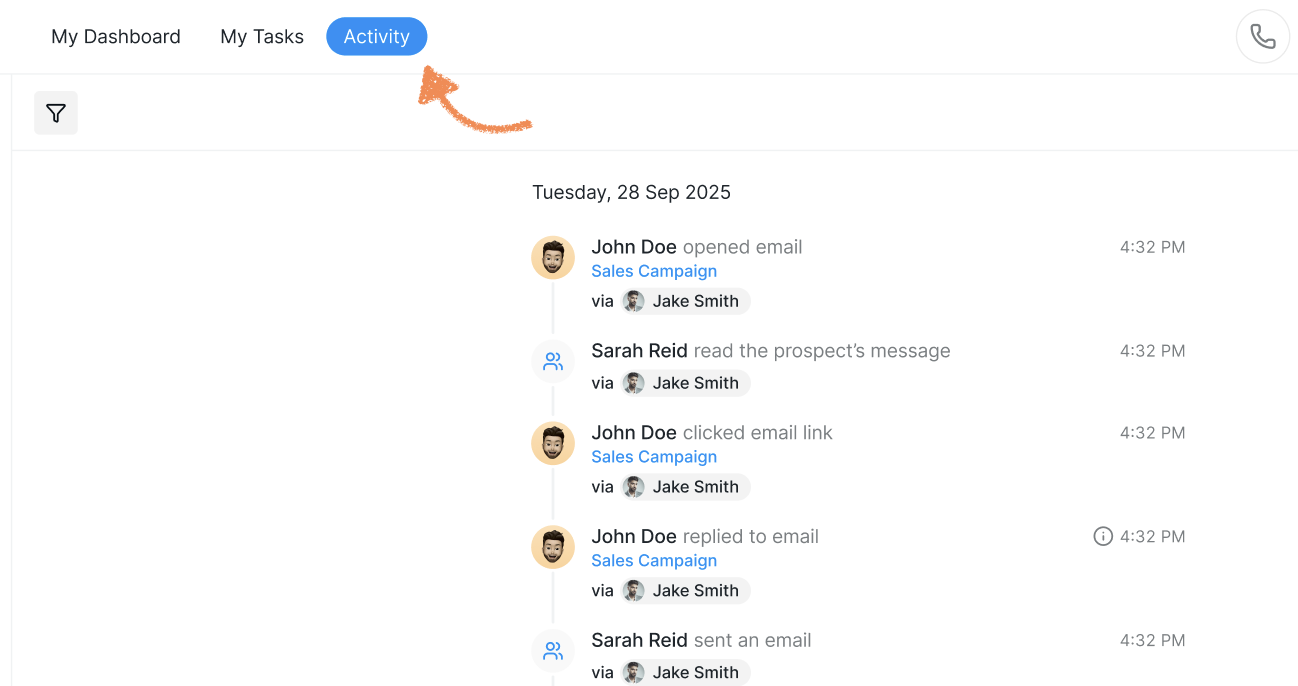
Here, you’ll see a complete list of activity events for prospects associated with the selected Social Account. Each event shows what action took place, when it happened, and which workspace user or campaign triggered it.
This view is especially useful for getting a high-level picture of everything happening across all your campaigns.
View activity for a specific prospect
To see the full activity history of an individual prospect, go to Inbox and open the conversation with that prospect. Then, select the Activity tab at the top.
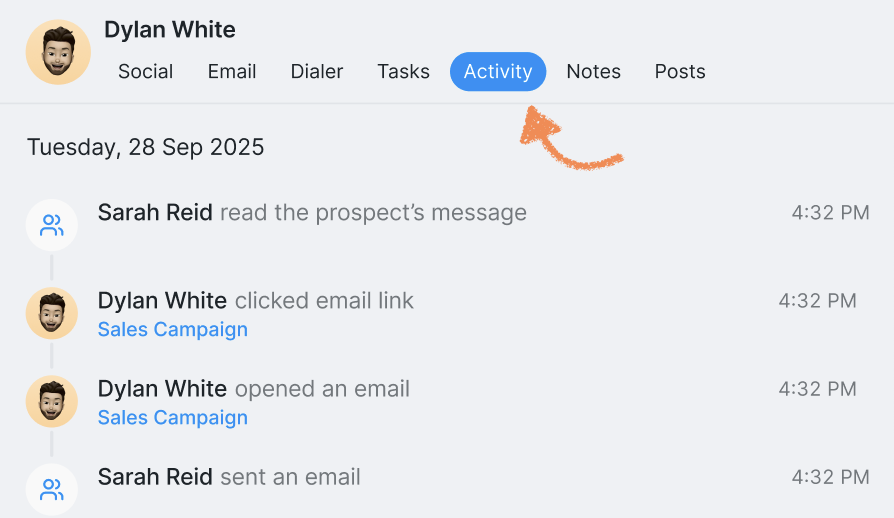
This gives you a focused timeline of everything that has happened with that prospect, making it easier to understand the conversation history and see how they've interacted with your outreach.
What events are logged?
The Activity Log records both prospect activity and actions performed by users or campaigns.
Prospect activity
You may see events such as:
Event | What happened |
Accepted connection request | The prospect accepted your connection request. |
Opened email | The prospect opened an email sent to them. |
Clicked email link | The prospect clicked a link in an email. |
Clicked message link | The prospect clicked a link in a message. |
Called back | A call was received from the prospect after a voicemail drop. |
Replied to Email | The prospect replied to an email. |
Replied to SMS | The prospect replied to an SMS message. |
Replied to Social message | The prospect replied to a Social message. |
Visited URL | The prospect visited a tracked URL. |
User and campaign activity
The Activity Log also tracks actions performed manually by users or automatically by campaigns:
Event | What happened |
Sent Social connection request | A connection request was sent to the prospect. |
Sent Social message | A Social message was sent to the prospect. |
Sent InMail | An InMail was sent to the prospect. |
Sent email | An email was sent to the prospect. |
Sent Voicemail Drop | A voicemail drop was sent to the prospect. |
Sent Voice Note | A voice note was sent to the prospect. |
Read prospect’s message/email | A user opened and read a message from the prospect. |
Why use the Activity Log?
The Activity Log helps you keep everyone on the same page. Instead of having to piece together what happened across conversations, campaigns, and different team members, you can see the full sequence of events in one place.