Setting Up and Managing AI Comment Prompts
Last updated: August 4, 2026
Custom prompts let you define the tone, style, and focus of every comment the system writes on your behalf — so your outreach stands out and stays on-brand.
Where to Find Your Prompts
All your AI comment prompts live in Resources > AI Suite > AI Comments. This is your central hub for creating, editing, and deleting prompts.
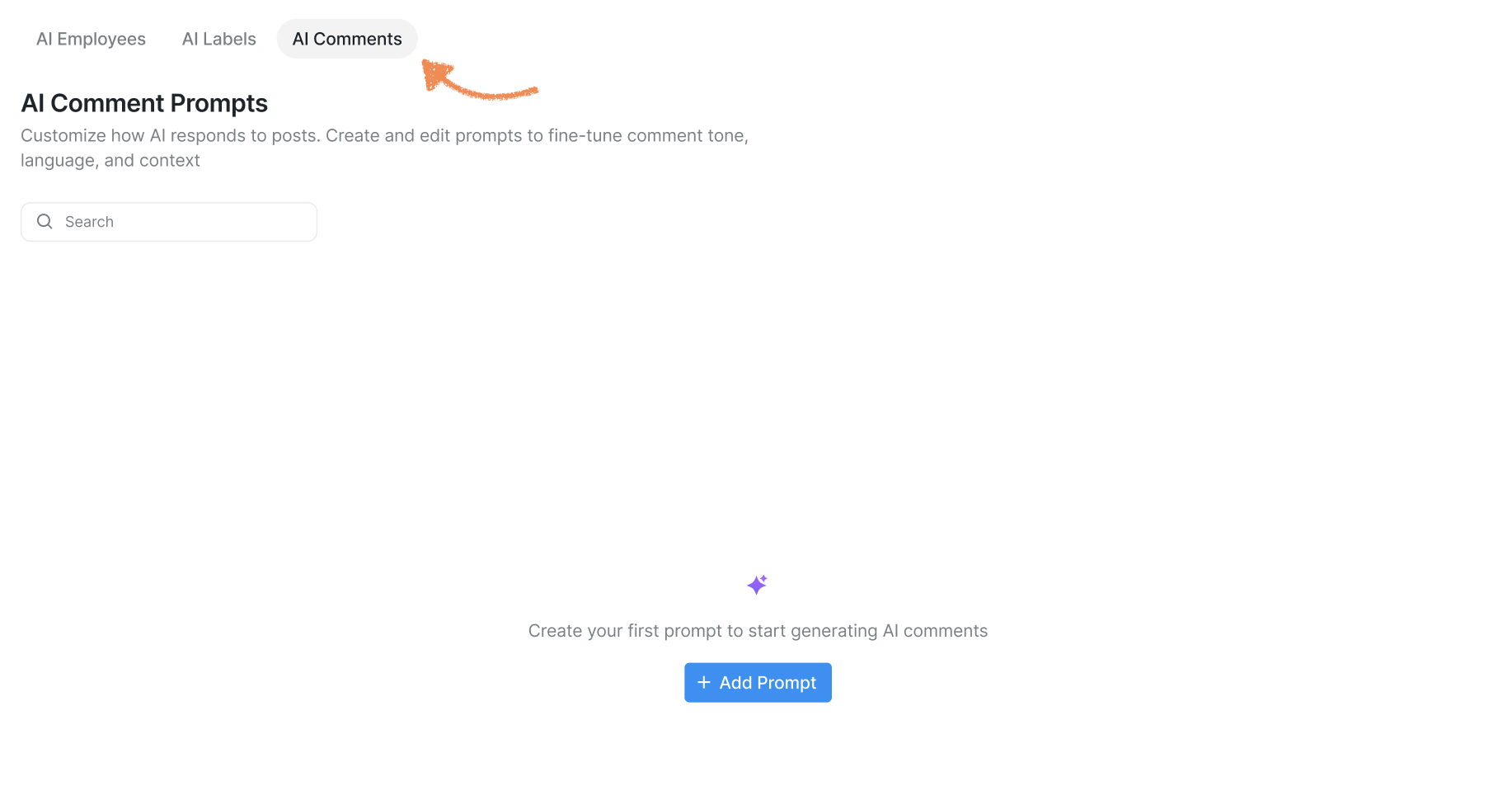
To create your first one, click + Add Prompt in the center of the page. A pop-up will appear where you can name your prompt and write the instructions for it.
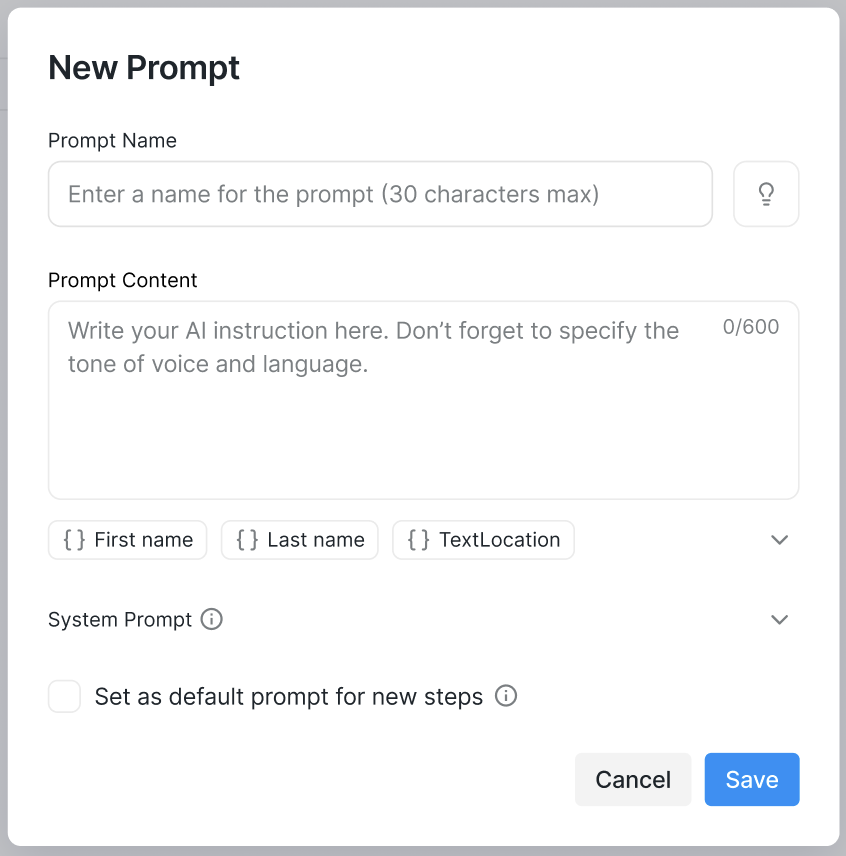
Naming your prompt: Keep it simple and descriptive — something like Positive Comment, Funny Comment, or Ask a Question works great.
Writing your instructions: Think of this as briefing a real assistant. Be as specific as you'd like. For example: You are a sales assistant who writes comments for social posts. Create a short, idiomatic, warm, friendly, positive comment in 30 words or fewer.
Using placeholders: You can include dynamic placeholders in your instructions to personalize comments automatically. For example: Be sure to mention the prospect's {first_name}.
Note: The System Prompt field is read-only — it's there to keep the AI's output within healthy communication guidelines and isn't something you'll need to change.
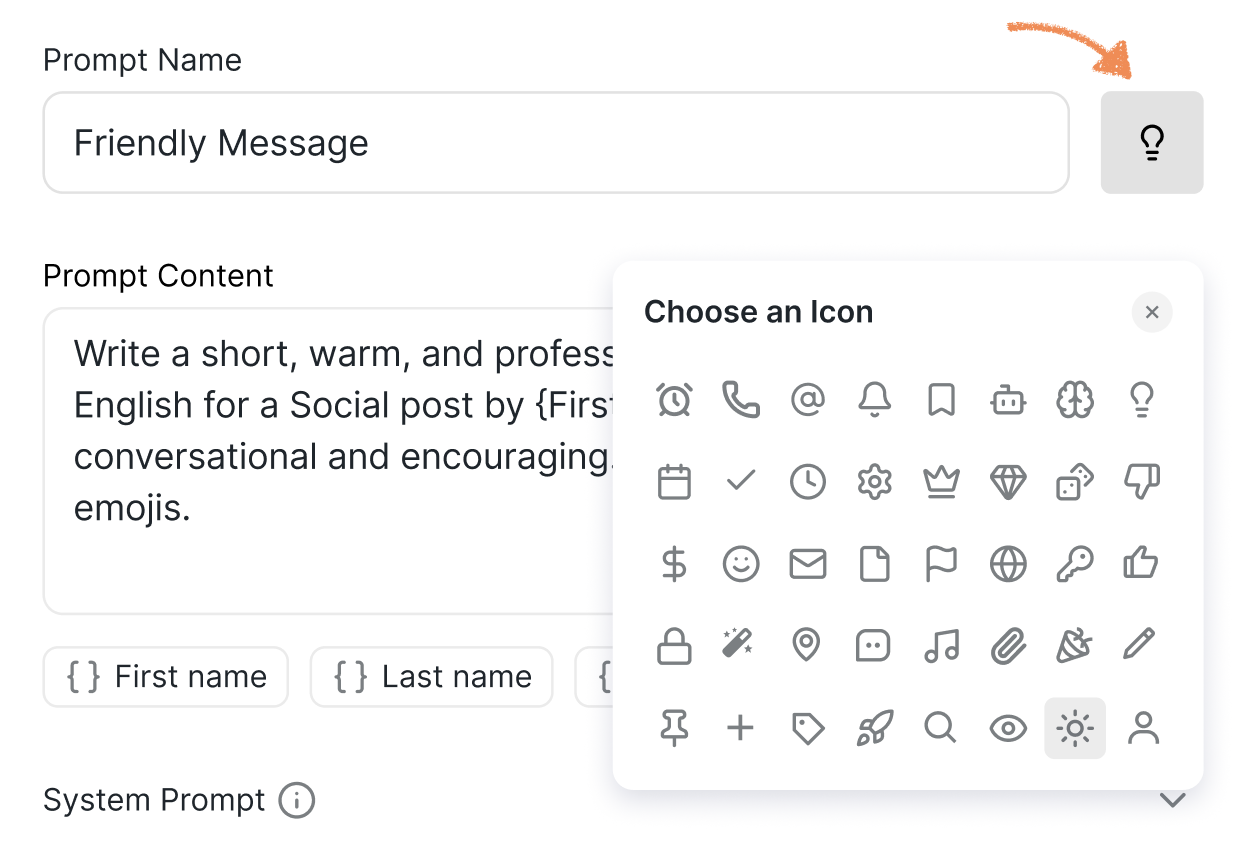
You can also assign an icon to each prompt to make it easier to navigate your prompt list at a glance.
Setting a default prompt: If you'd like a prompt to be automatically selected every time you add a new Post AI Comment step, toggle on the option to save it as a default. You can always update this later. Keep in mind that you can have up to 10 prompts at a time.
Once you're happy with your setup, click Save.
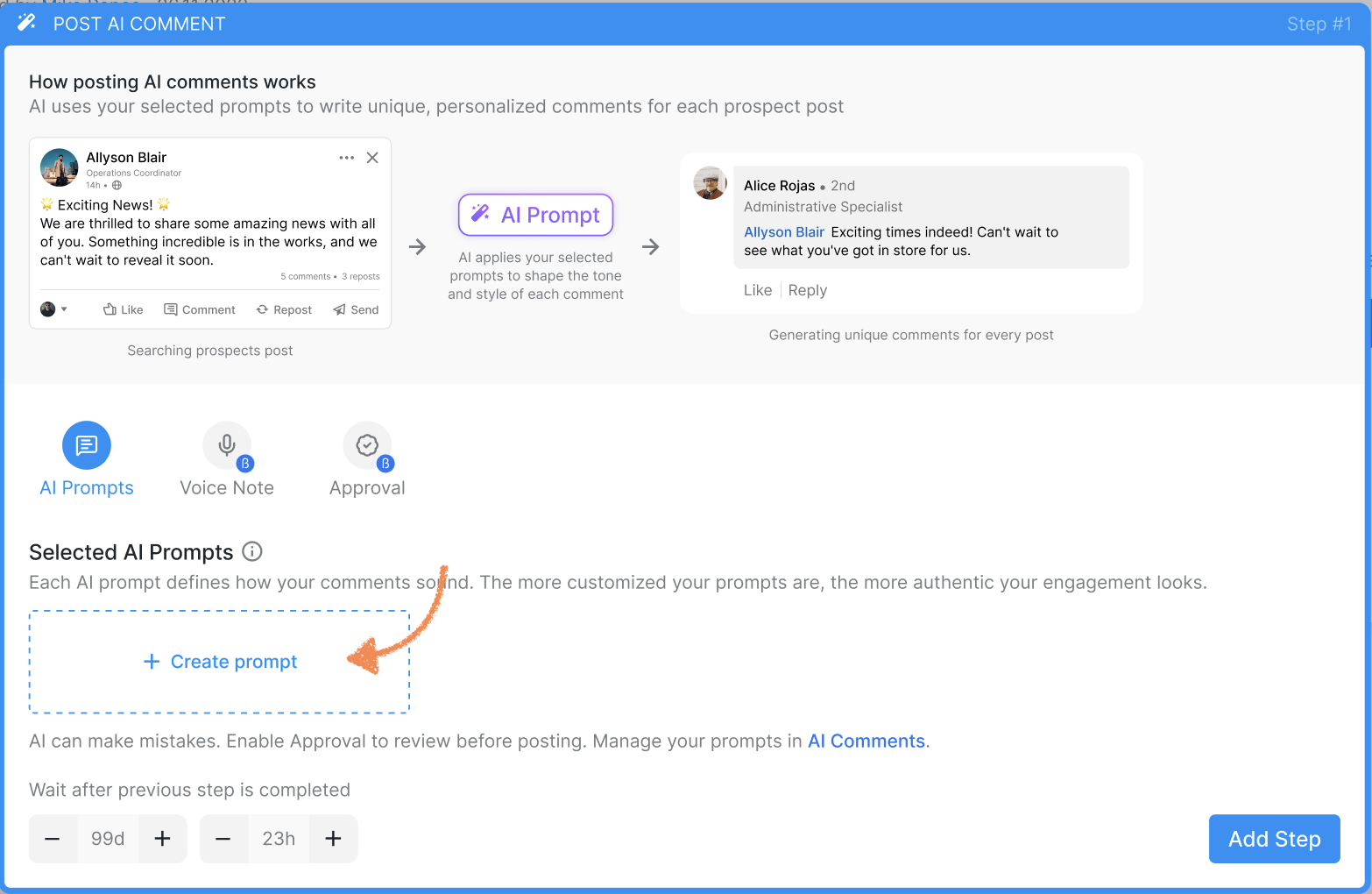
Tip: You can also create new prompts directly from within a campaign step, without going to the Resources tab.
How to Edit or Delete a Prompt
Go to Resources > AI Suite > AI Comments, then click the three-dot menu next to the prompt you want to update. From there, choose to edit or delete it.
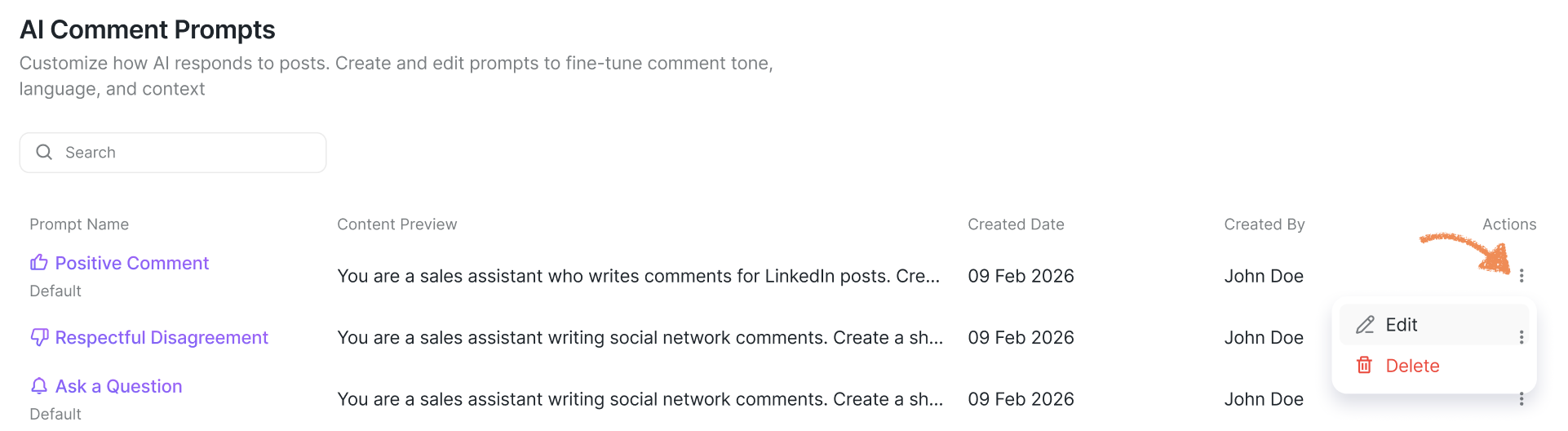
A couple of things to keep in mind:
Any changes you make to a prompt will apply to all campaign steps currently using it.
If you delete a prompt that's active in one or more campaigns, the affected prospects will move to Pending status.
Adding Prompts to a Campaign Step
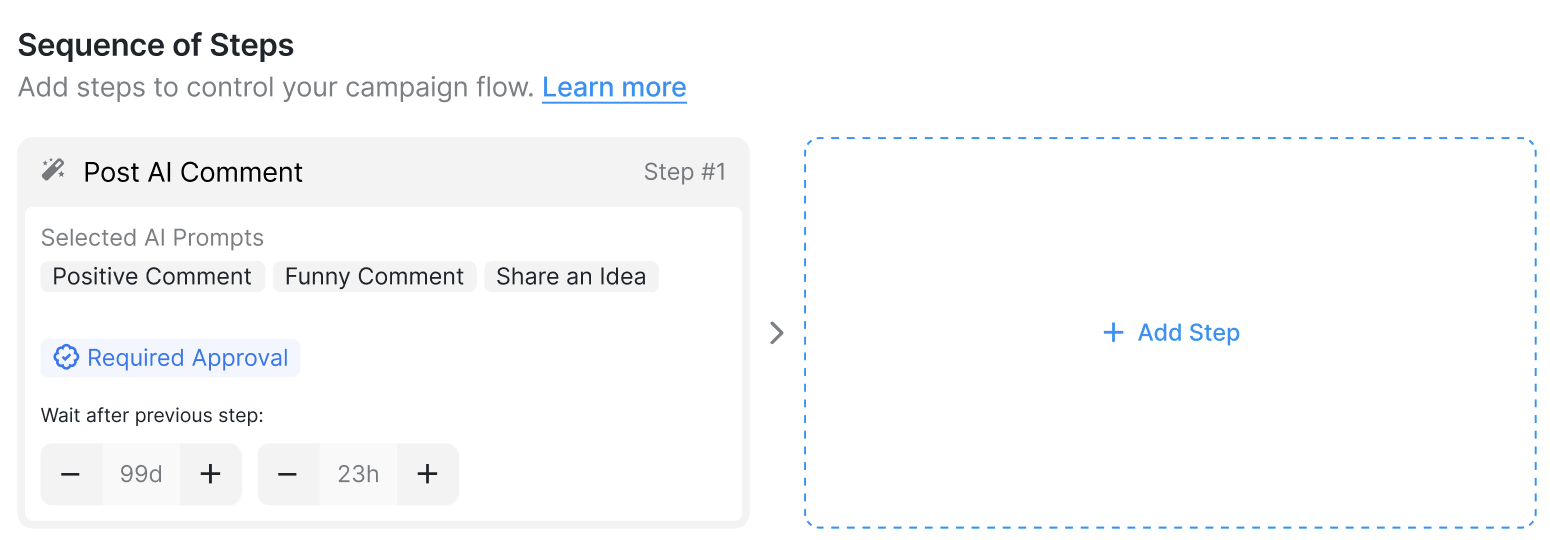
When setting up a Post AI Comment step in your campaign, you'll need to choose which prompt(s) to use.
After adding the step, you'll see the prompts already selected — these are the ones you've marked as defaults. To add more, click the + button and select whatever prompts you need.
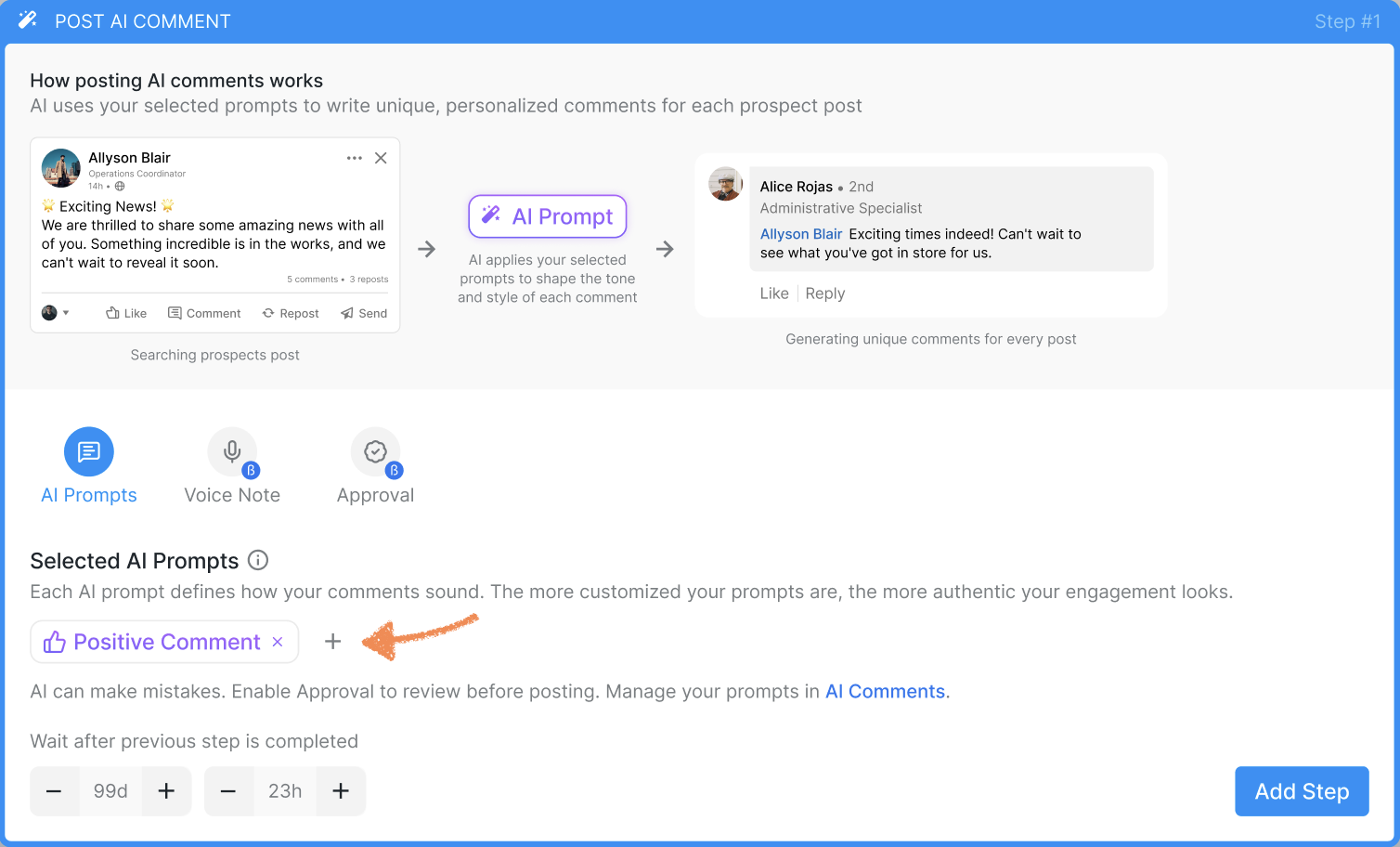
When multiple prompts are selected, the AI will randomly pick one each time it generates a comment — great for keeping your outreach feeling varied and natural.
You can select up to 10 prompts per step. When you're done, click Select to confirm, then click Add Step, review your campaign, and launch it.