Managing Your Web Visitor Trackers
Last updated: April 13, 2026
This feature is currently unavailable.
Once your Web Visitors trackers are set up, it’s easy to keep everything organized and under control. From a single view, you can monitor performance, manage settings, and make changes as needed — whether you’re running one tracker or many. This section walks you through how to access your trackers and the actions you can take to manage them effectively.
Accessing Your Trackers
To manage your Web Visitors trackers, go to: Prospects > Web Visitors

Each tracker is tied to the Social Account it was created from on the platform. Keep this in mind if you manage multiple seats.
What You Can Do with a Tracker
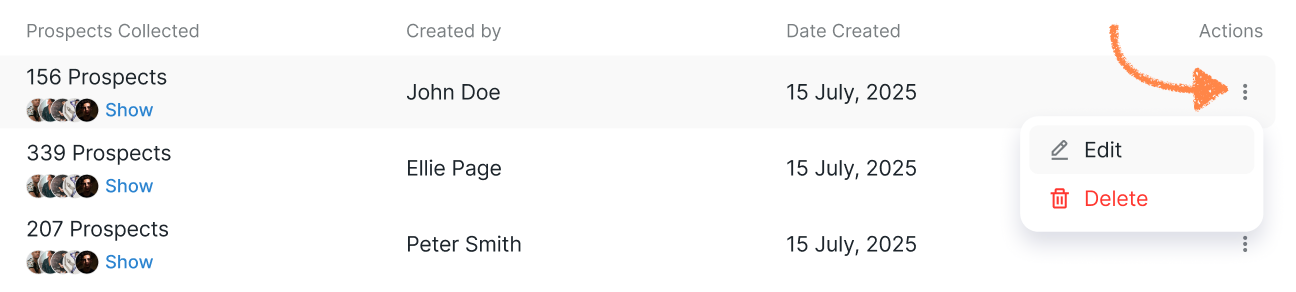
From the tracker list, you can:
Toggle On/Off: Activate or deactivate a tracker at any time.
View Prospects: Click Show under Prospects Collected to see everyone tracked by that code.
Check Details: See who created the tracker and when it was added.
Edit or Delete: Click the three-dot menu for additional actions.
Open Tracker Details: Click anywhere on the row to view more information.
🗑 Deleting a tracker only removes the tracker itself.
All collected prospects remain safely stored in your prospect base.
Editing a Tracker
When you click Edit, you’ll open this section:
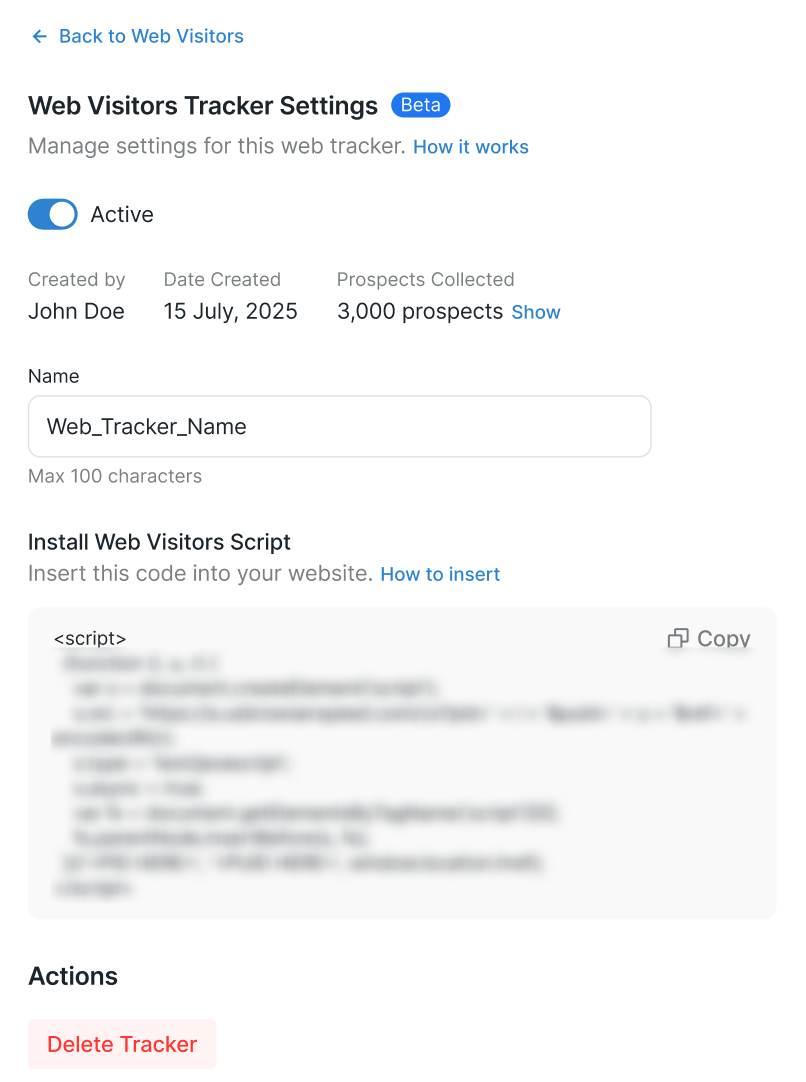
Here, you can:
Rename your tracker;
Activate or deactivate it;
Retrieve the code snippet (if you want to reinstall it later);
Delete the tracker.
This makes it easy to manage your tracking setup as your needs evolve.