Using Dialer in Your Campaigns
Last updated: April 14, 2026
Once you have your dialer number, you can integrate it directly into your outreach campaigns to automate calls and SMS steps (SMS sending is temporarily unavailable).
How to Add Dialers to Your Campaigns
Choose or create a campaign.
Click Add Step for a simple campaign or Open Sequence Builder for a smart campaign.
Select a dialer option Make a Call or Send SMS.
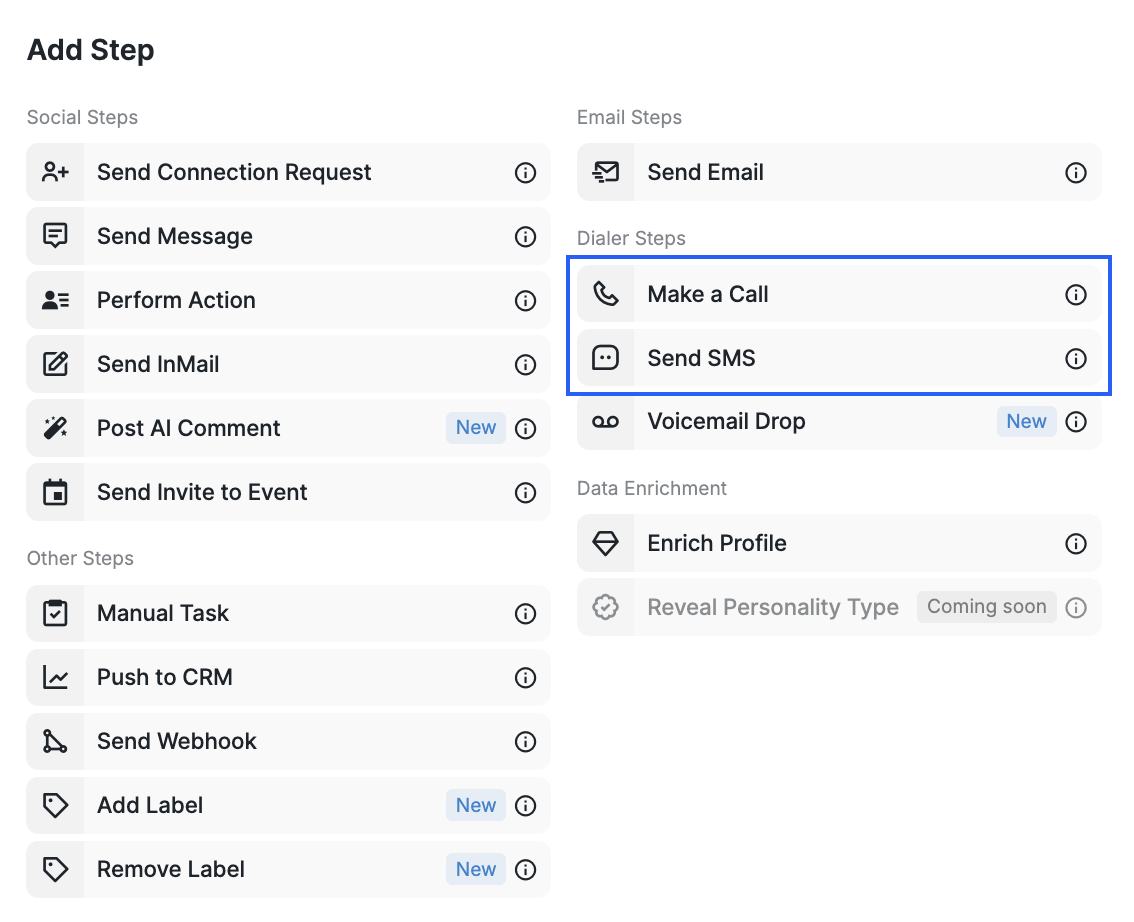
4. When you select Make a Call, you will see the following options:
Enter the note or call script you would like to use for this call.
Specify when you want it scheduled (i.e. waiting period after the previous step).
Choose the person to whom this task should be assigned.
Set the priority level (optional)
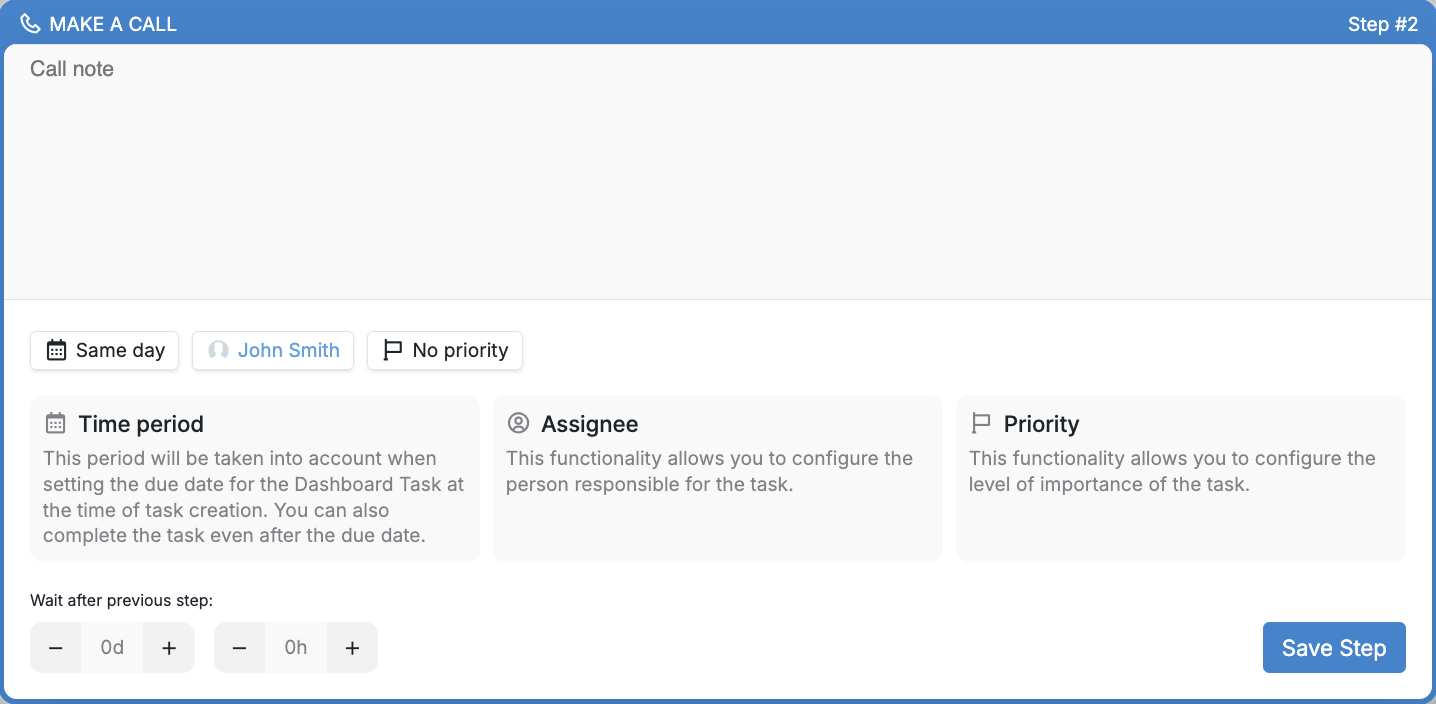
Warning! The prospect will be paused in the campaign until the Make a Call step is actioned from the Dashboard.
When you select the Send SMS step, please identify the following:
The phone number you wish to send the message from.
Choose between an enriched or personal phone number.
The content of your text message (keep it concise).
If included in your package, you can utilize AI for assistance.
If you have Calendly connected, you can also use it to generate a link to a meeting. The link will be sent alongside the message.
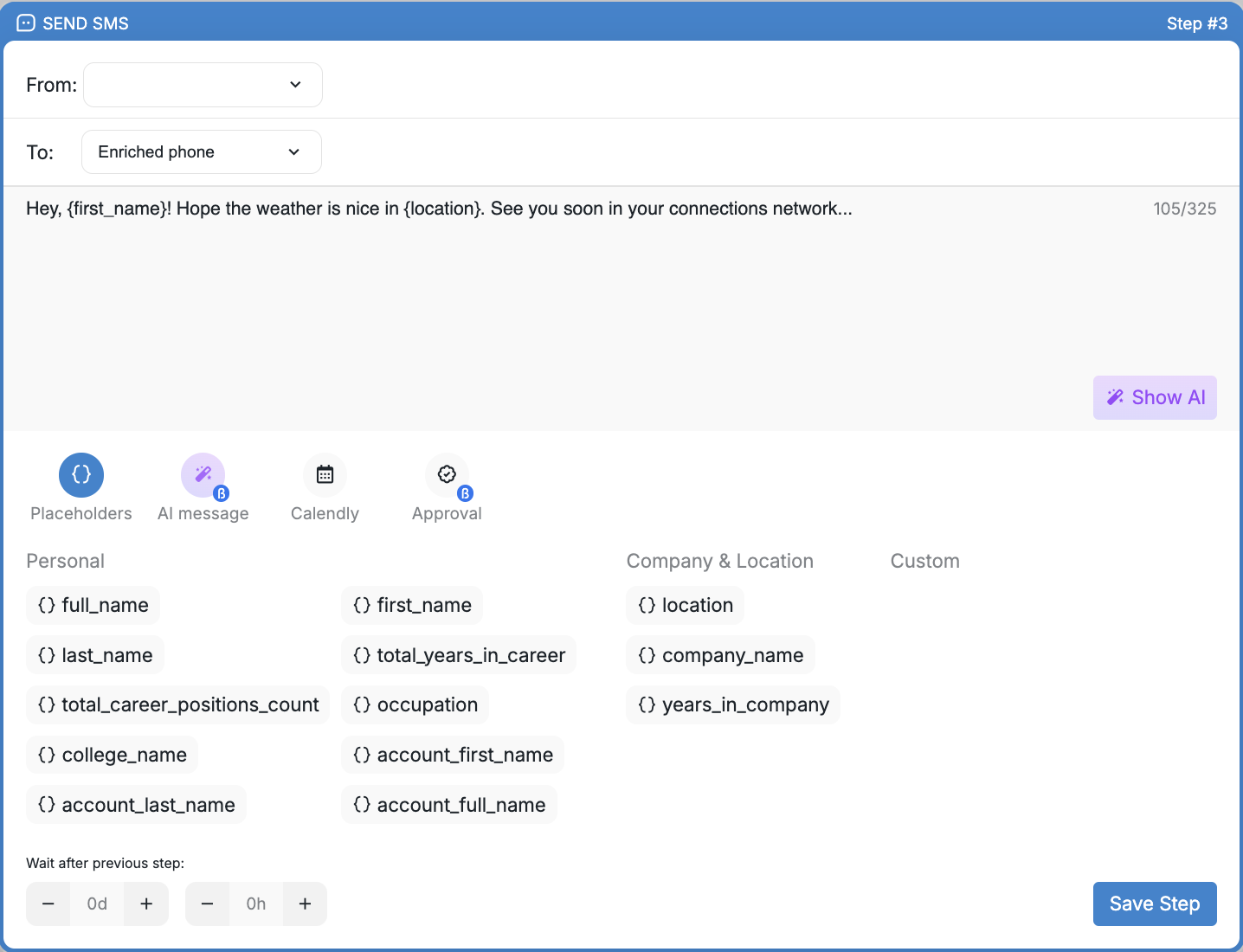
Approval: If you prefer to manually approve messages before they are sent, enable this option. If enabled, the prospect will be paused until you take action in the Dashboard.
If you have any questions regarding the use of Dialer, please contact our Customer Support team for further assistance.