Activity Sync & Pushing Prospects to Salesforce
Last updated: April 14, 2026
Activity Sync is designed to automatically track and sync updates about your prospects’ interactions to your Salesforce workspace. This ensures that all relevant activity is seamlessly transferred without manual effort. By keeping data up to date across systems, Activity Sync saves time and streamlines workflows, helping teams work more efficiently and with greater accuracy.
If you’d like to automatically send activity data to Salesforce along with your prospects, make sure this option is turned on.
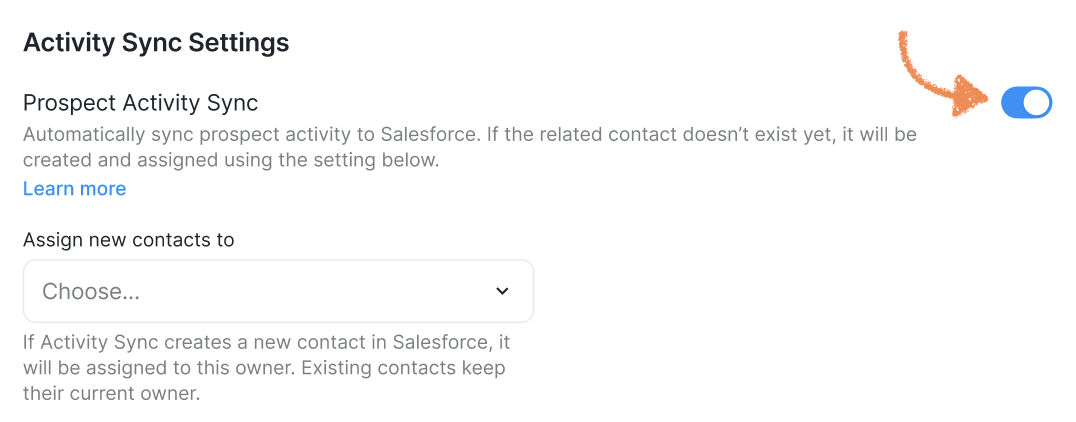
The following activity types will be synced:
AI Label Added
Label Added
Label Deleted
Prospect Invited to Connect
Prospect Accepted Connection
Prospect Booked a Meeting
Prospect Replied
Prospect Marked as Customer
Prospect Marked as Lead
Message Received from Prospect
Message Sent to Prospect
Message Link Clicked
Email Sent to Prospect
Email Received From Prospect
Email Link Clicked
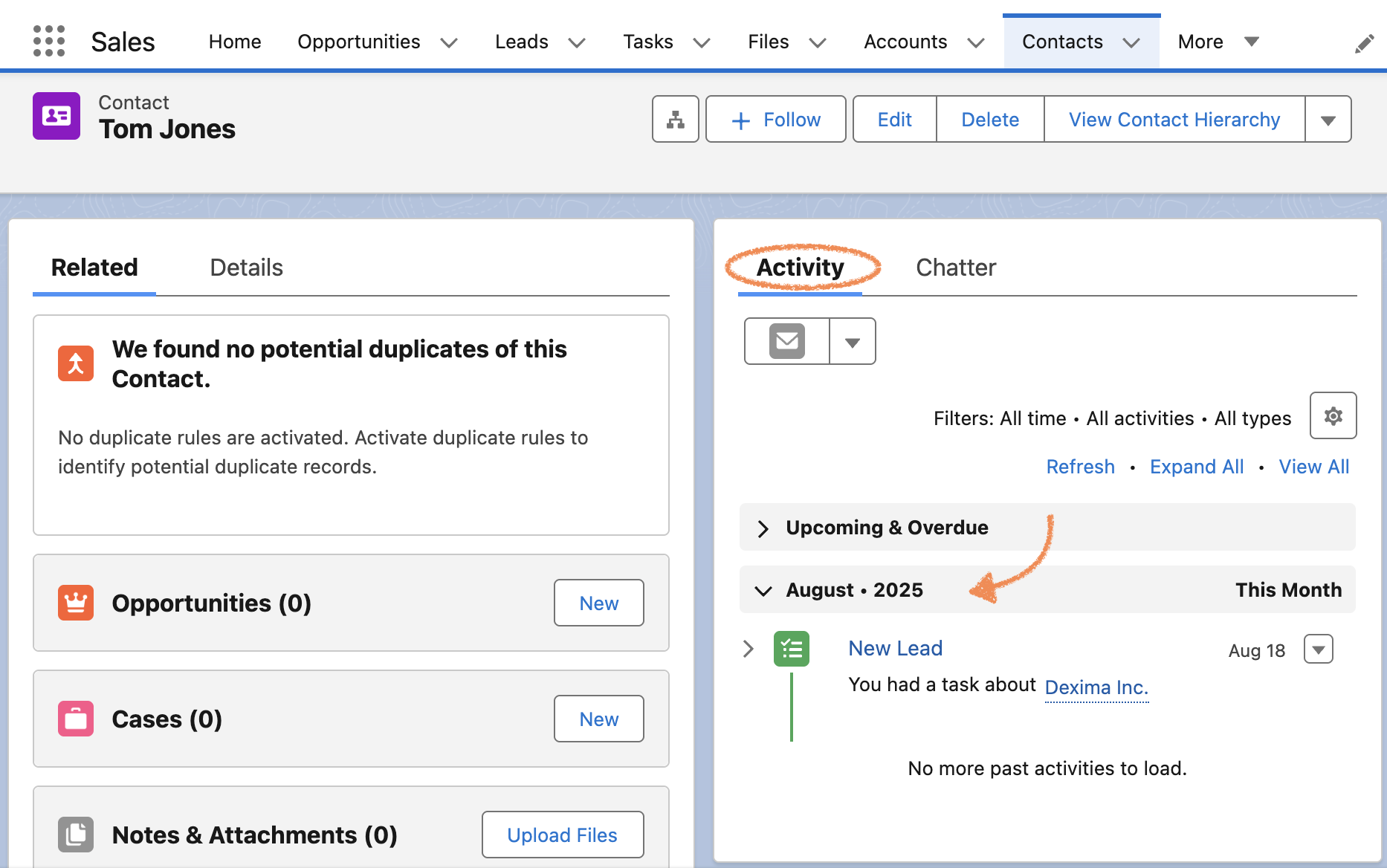
In Salesforce, you will find this info exported to the Activity History section as Tasks.
Assigning a Contact Owner for Activity Sync
To begin syncing any activity, you will first need to assign a Contact Owner to link this activity to.
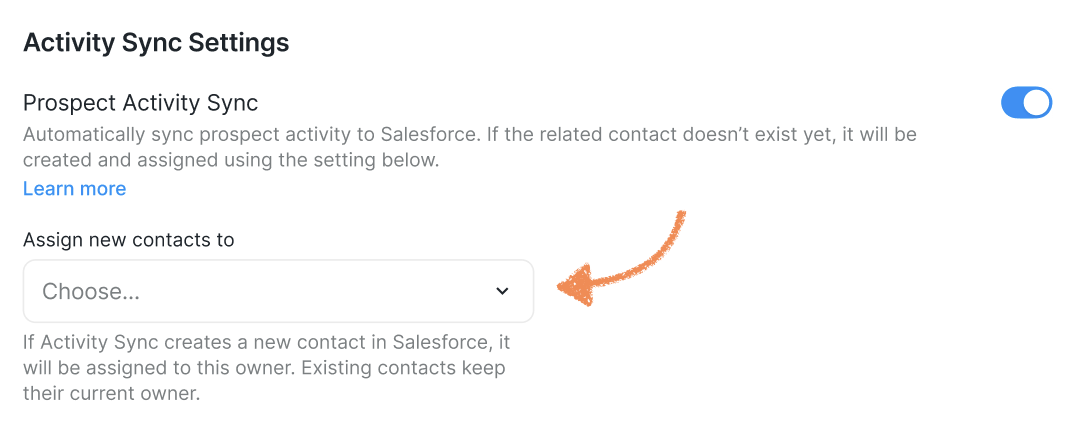
Not all owners may appear in the dropdown list by default, but you can still use the search bar to find any owner across all your Salesforce accounts.
Before selecting a Contact Owner, confirm they have activity recording permissions in Salesforce.
When you start syncing prospect data through Activity Sync, this is the Owner that will be assigned to those contacts.
Quick note about Activity Sync
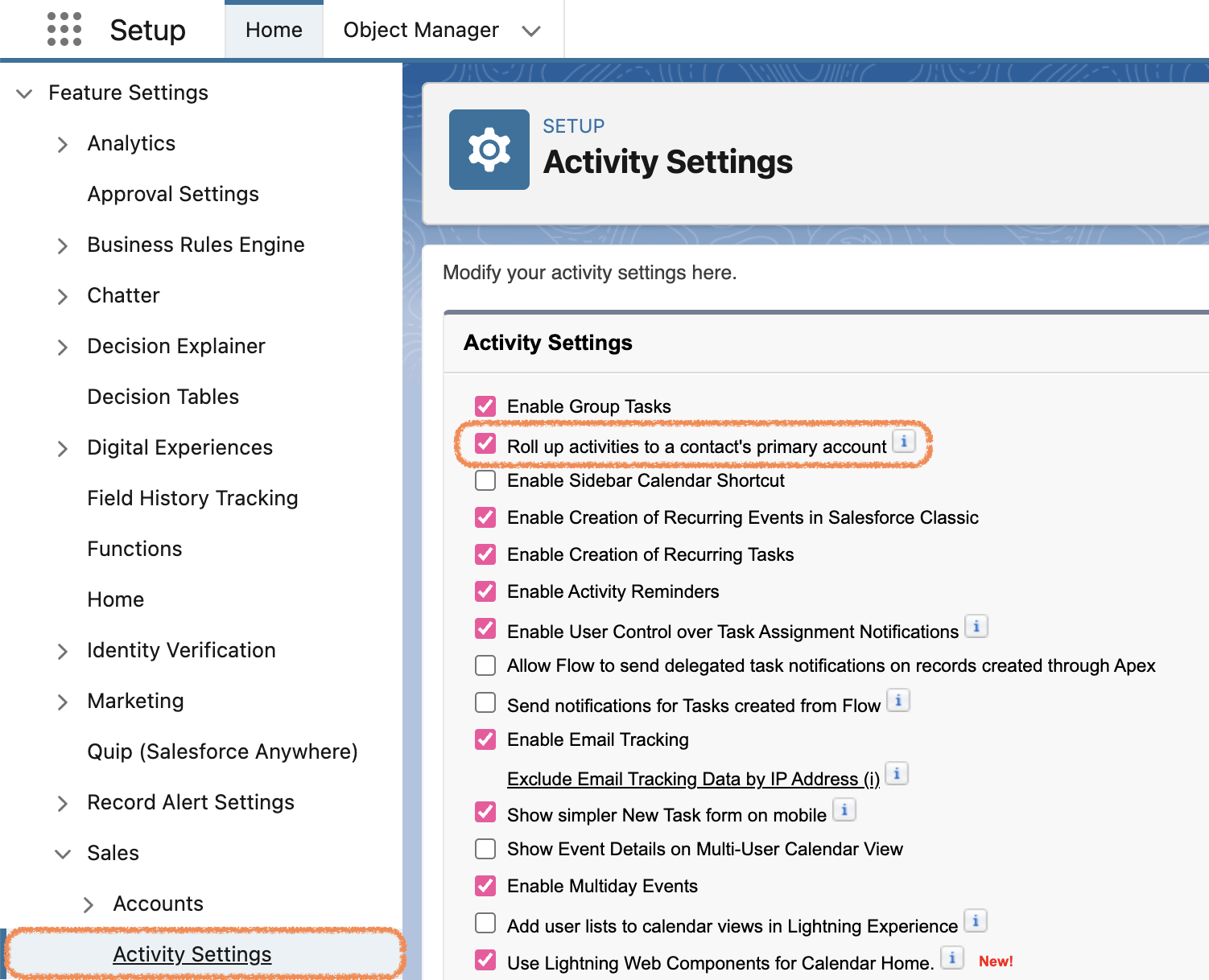
By default, the platform doesn't send activities to the Account record in Salesforce. If you want to relate Contact activity to its Account, go to Salesforce Setup → Platform Tools → Feature Settings → Sales → Activity Settings, and toggle ON the “Roll up activities to a contact’s primary account” setting. This way each Contact's activity in Salesforce will be related to their respective Primary Accounts as well.
Once you start using the integration, it’s helpful to know that you can manually sync the data between Salesforce and the platform at any time. This ensures any new Accounts or Owners added in Salesforce will show up in the platform interface:
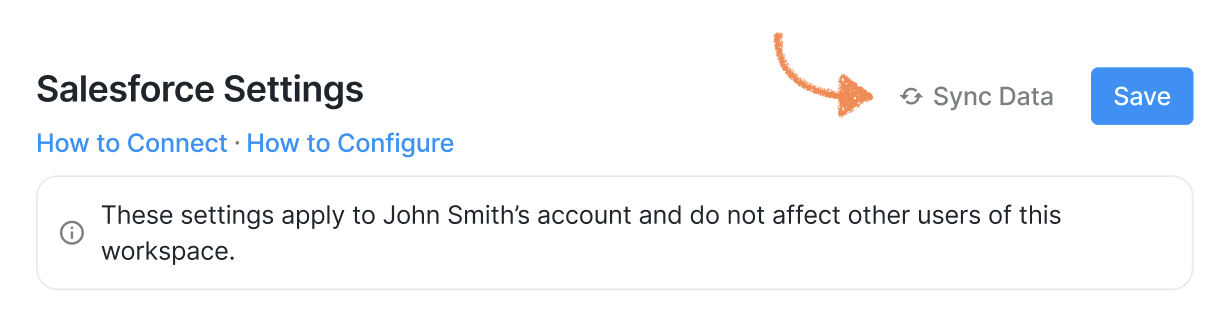
Simply click the Sync Data button at the top of the Salesforce Integration Settings page to start the sync. The sync takes up to 5 minutes, but usually happens faster.
With Activity Sync and multiple push options, we ensure your Salesforce workspace stays up to date automatically. For any questions or troubleshooting, contact the Customer Support team.