Integrating Zapier
Last updated: February 6, 2026
We offer a variety of powerful integrations, including Zapier — a tool that connects our platform to other apps not natively integrated. Learn how Zapier can help optimize your workflow below.
In this guide, we will walk you through connecting Zapier to your account, creating your first Zap, and getting it running smoothly.
How to Connect Zapier
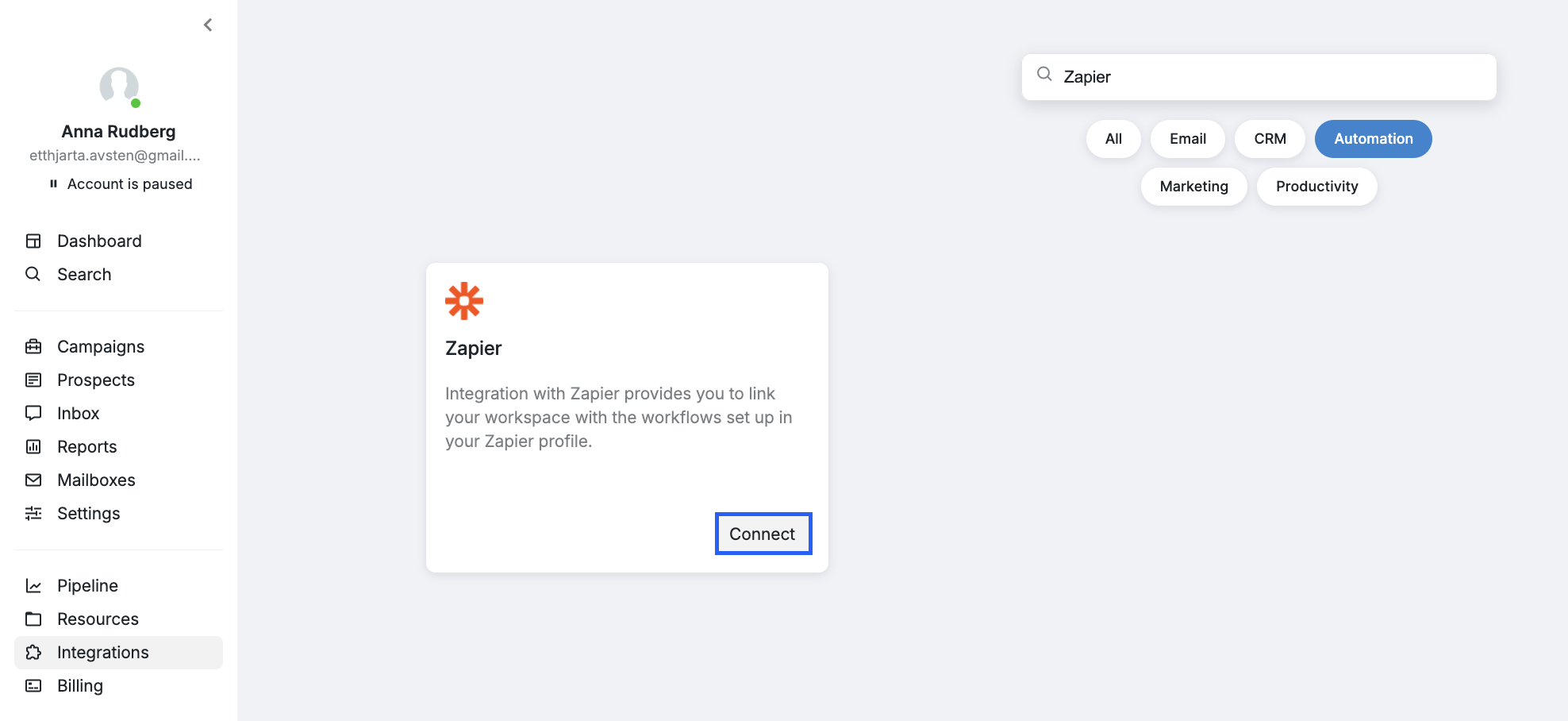
Navigate to the Integrations tab, then select Automation and click Connect under the Zapier option.
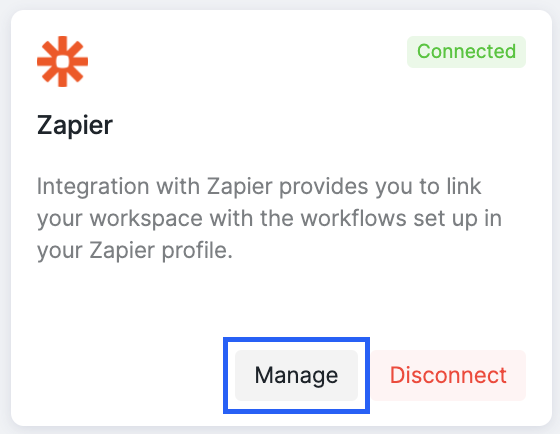
Once connected, click Manage to receive your unique Zapier token.
You will see a unique Zapier token that you need to copy.

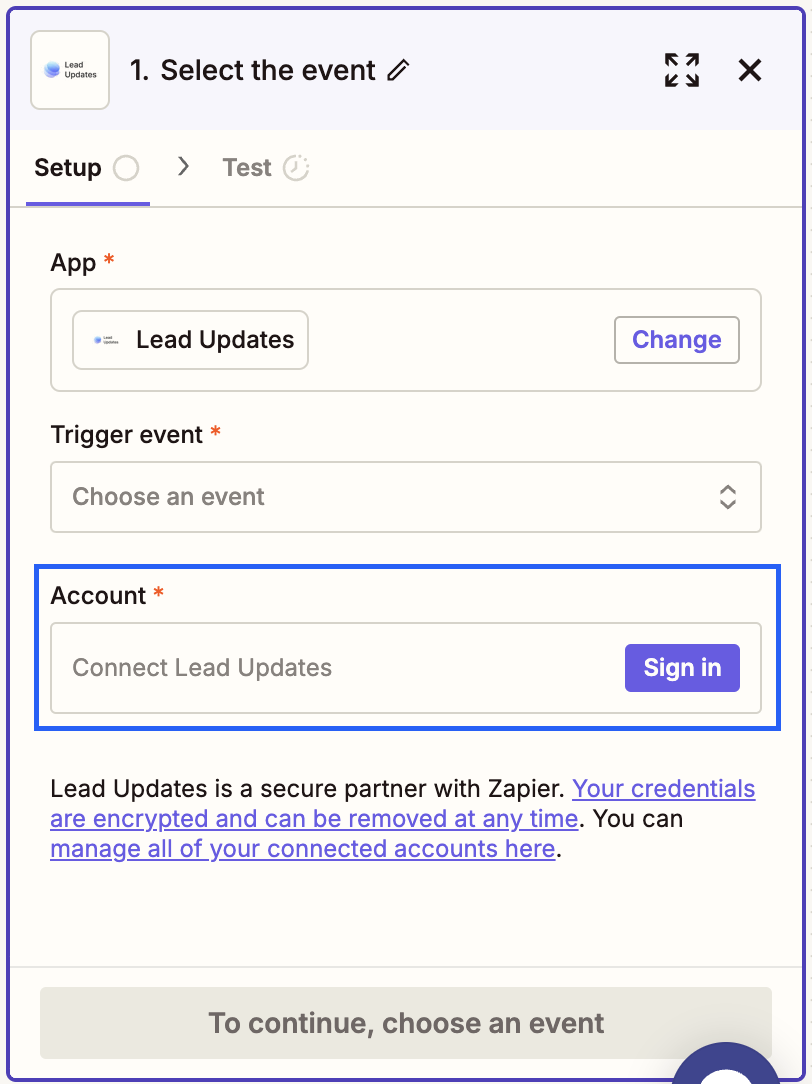
Copy the token, go to your Zapier account, and choose Lead Updates from the available apps. Paste the token on the Select the Event page to complete the integration.
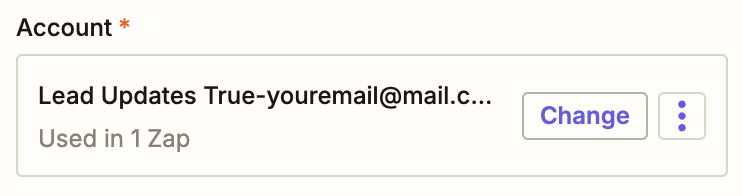
After a successful connection, you will see your account linked in Zapier.
Please note that the Zapier integration applies specifically to the Social account linked to your workspace.