How to Connect Calendly
Last updated: April 14, 2026
Getting Calendly connected is quick, and once it’s set up, you won’t have to think about it again. This is the “set it once, use every day” kind of setup: after connecting, you’ll be able to drop your scheduling link into conversations without leaving the platform. If you’re ready to stop copying links around and start booking meetings faster, this is the place to start.
Steps to connect
Go to your Dashboard.
Click Integrations in the left sidebar.
Search for “Calendly”.
Click Connect.
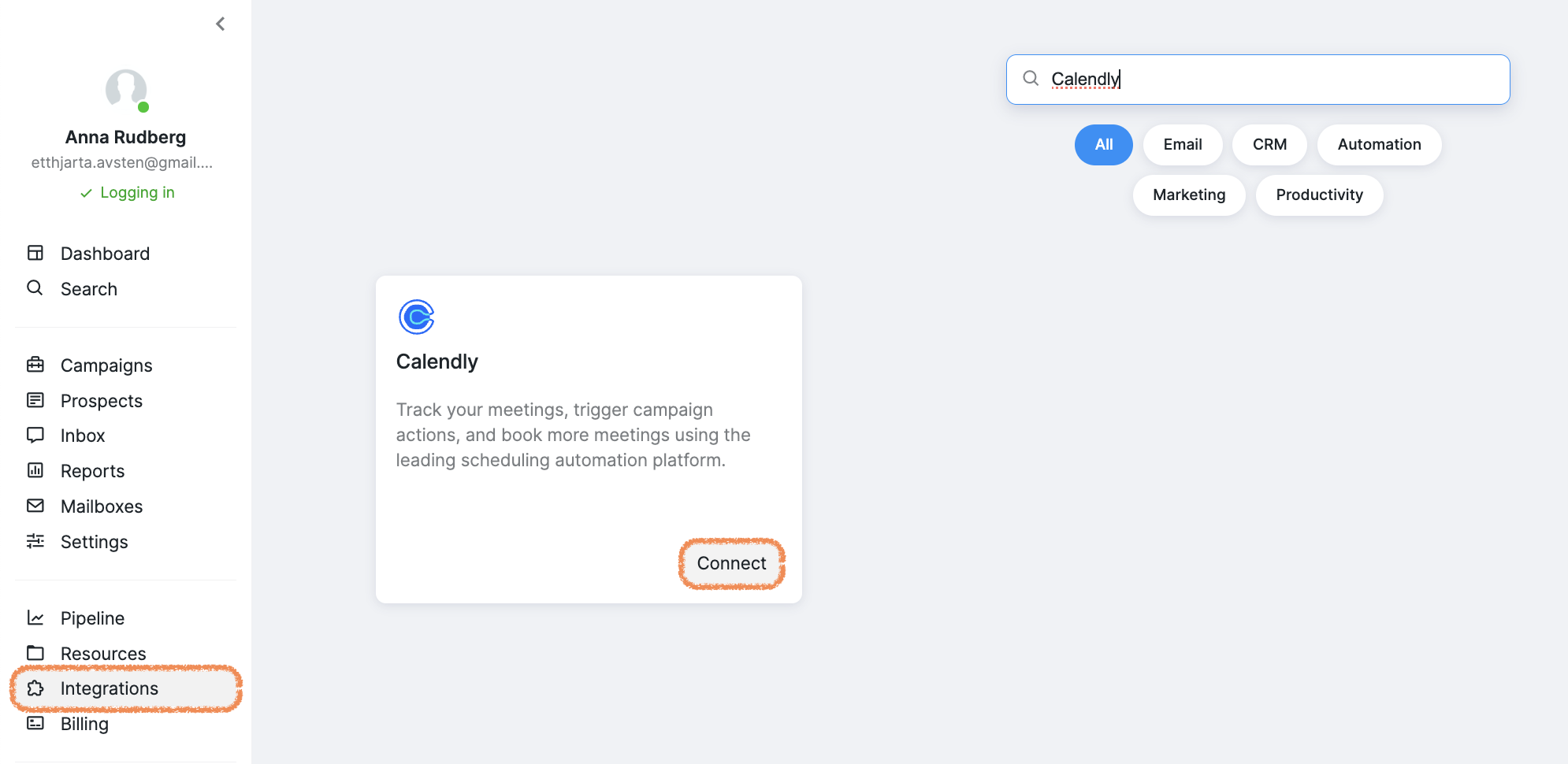
5. You’ll be redirected to Calendly to log in and complete the connection.
Make sure you’re logged into the platform using the same platform user that should own the Calendly connection.
Note: When connecting your Calendly account, you may see pop-ups prompting you to log in with third-party services (such as Microsoft 365) after entering your login. To complete the integration, proceed by clicking "Log in with..." and entering your password. This requirement comes from Calendly.
Need help? If the connect button doesn’t work or login is confusing, reach out to our Customer Support.