How to Add Prospects to the Blacklist
Last updated: April 13, 2026
Once you understand what the Blacklist does, the next step is learning how to add criteria and prospects to it. This article covers the different methods for blacklisting prospects.
How to Blacklist Prospects
When you first see the blacklist field, you might wonder what should be entered.
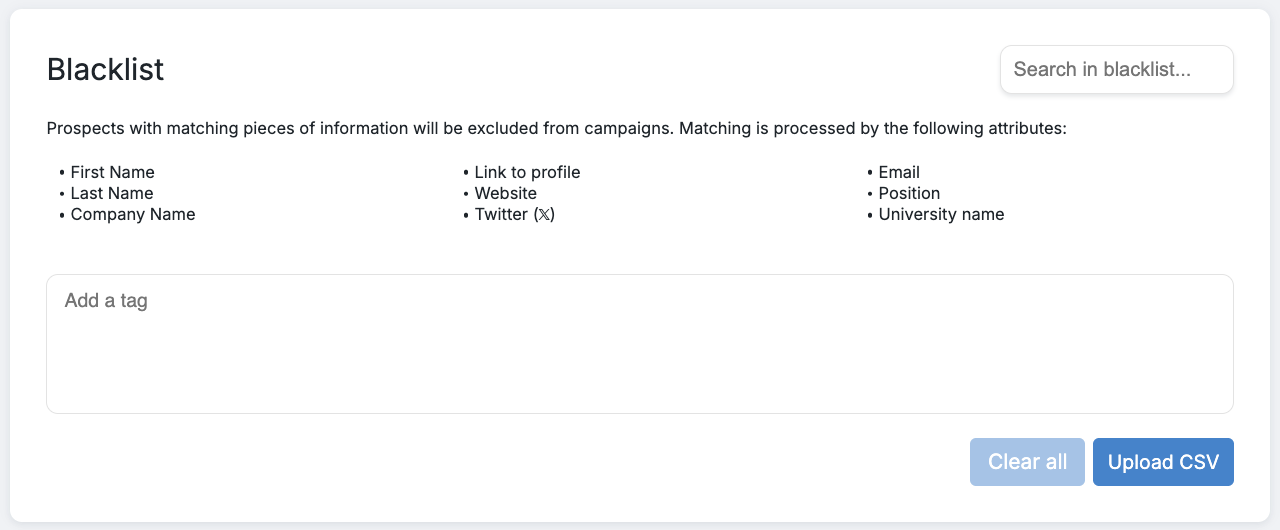
It's simple: enter any criteria you wish to exclude from your campaigns. This could include specific names, workplaces, emails, job positions, etc. The complete list of applicable criteria is visible in the screenshot above.
❗Excluding profiles by Company Social URL is currently unavailable.
Note: Exclusions can only be made based on the attributes listed above. If you need to exclude profiles using Social Platform-specific attributes (e.g., 'Open to Work'), you can manually add those profiles to a CSV file and upload it for the Blacklist to process.
To add a blacklist trigger, type the word or phrase into the field and press Enter or Return on your keyboard to separate multiple entries.
To delete all blacklisted words, click the Clear All button. To remove a specific word, double-click on it to erase it.
Blacklisting by Profile Link
You can also blacklist specific prospects by entering direct links to their Social profiles. Just copy the profile link and paste it into the field. Please note that this only works for open Social profiles.
A valid link should end with: .../in/john-doe-1234ab567 or .../in/john-doe-1234ab567/[anything]. Hashed links (e.g., .../in/ABcDEFG...) are not supported.
Important Notes on Matching
When you blacklist a word (e.g., "Apple"), any prospects with that exact word as their company name or first name will be blacklisted. However, prospects with names that contain the blacklisted word as part of a longer phrase (e.g., "Apple Inc") will not be affected.
Currently, a prospect can be blacklisted by their website only if the full URL exactly matches what's listed in a prospect's Social Contact Info. Partial matches are not supported at this time. For example, if a Social contact's website is test.com/my-user, the blacklist entry must match it exactly — test.com/my-user. Partial matches won't be recognized.
Our team is actively working on enhancing the blacklist functionality.
Manually Adding Prospects to the Blacklist
You can manually blacklist prospects by following these steps:
Go to the Prospects tab.
Find the prospect(s) you want to blacklist.
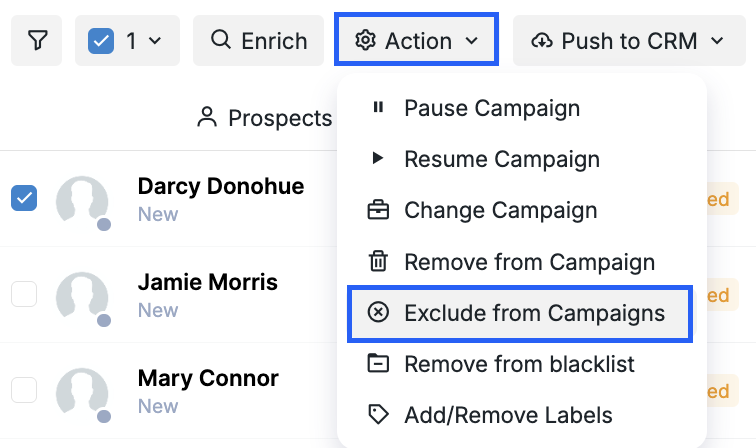
Tick the box next to their name(s), then select Action > Exclude from Campaigns.
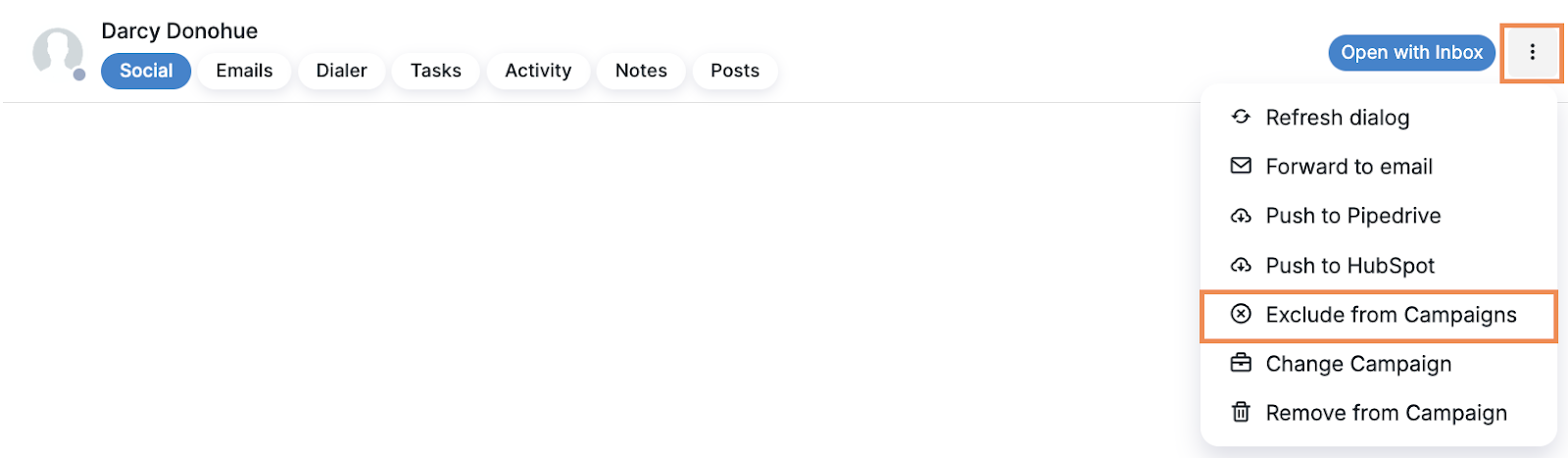
Alternatively, you can perform this action directly from a prospect's info card:
Whether you're adding criteria in bulk or blacklisting individual prospects, these methods give you flexibility in managing who gets excluded from your campaigns.