Using Filters to Organize Your Conversations
Last updated: April 13, 2026
As your Inbox grows, filters become your best friend. They help you quickly narrow down conversations so you can focus on what matters most.
The Filter button allows you to sort your conversations using various criteria.
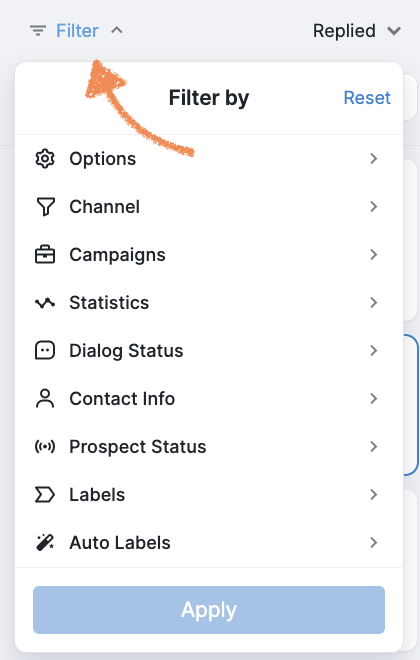
Here is a breakdown of the available filters and what each one does:
Options
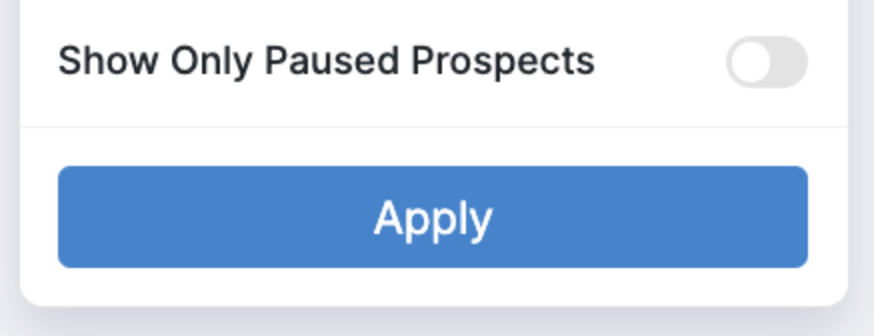
Under options, you have one filter:
Show Only Paused Prospects: displays conversations with prospects for which the campaign has been paused.
Channel
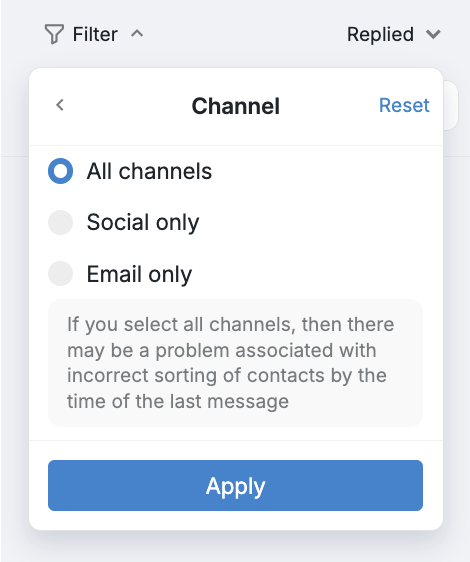
Sort dialogues based on the outreach channel:
All Channels: shows all conversations, regardless of outreach type. Note that time order may display inconsistently;
Social only: displays conversations within Social + Email campaigns;
Email only: displays conversations within Email campaigns only.
When you add a prospect to a campaign, we automatically pull your existing social and/or email thread with that prospect into the Inbox.
Keep in mind:
Some older or deleted messages might not show up, depending on your email provider and how data is synced.
There's no set limit for how far back the message history goes — it can vary case by case.
Campaigns
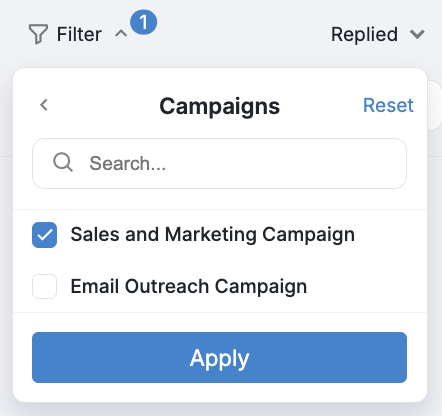
Filter conversations to view only those within specific campaigns. Simply select the campaign(s) you wish to view:
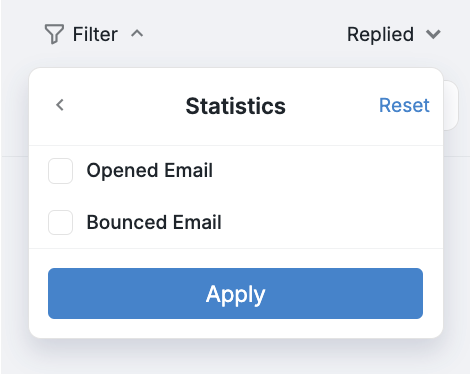
Statistics
You can filter conversations by email interaction status:
Opened email: shows conversations with users who have opened an email at least once.
Bounced email: displays conversations with users who failed to receive the email.
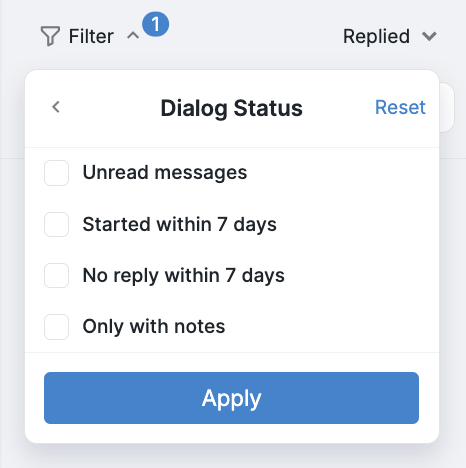
Dialog Status
Sort conversations by:
Unread messages: displays conversations where your message remains unopened;
Started within 7 days;
No reply within 7 days;
Only with notes: shows conversations with internal notes added.
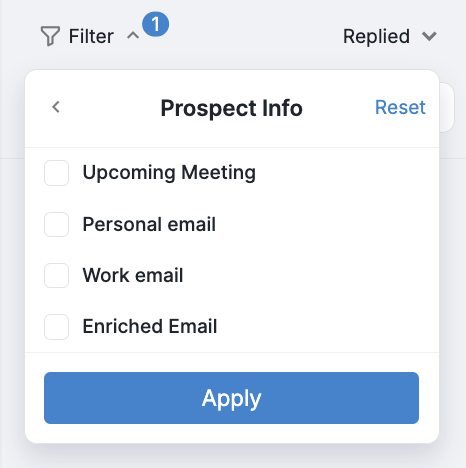
Prospect Info
Filter conversations based on prospect information.
Upcoming Meetings: displays conversations with prospects with scheduled Calendly meetings;
Personal Email: shows conversations with prospects contacted via personal email;
Work Email: shows conversations with prospects contacted via work email;
Enriched Email: displays contacts reached via their enriched email.
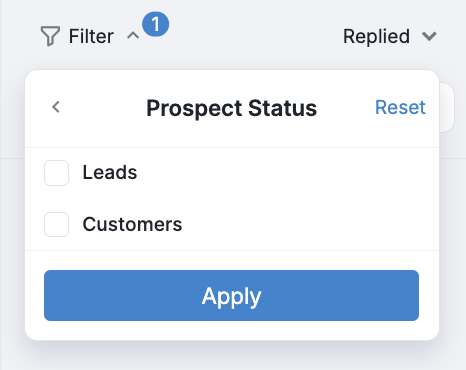
Prospect Status
Display conversations based on prospect status:
Leads: shows only dialogs with prospects marked as Leads;
Customers: shows only dialogs with prospects marked as Customers.
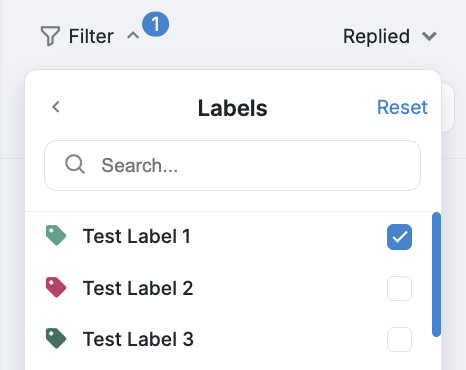
Labels
Organize conversations using custom labels you have assigned to certain prospects.
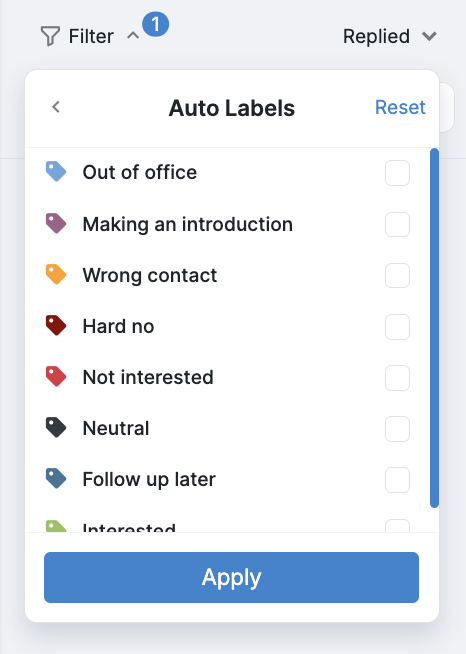
Auto Labels
Display conversations tagged by the AI sentiment detector. For more on Auto Labels and their meanings, refer to this article.
Additional Filters
At the top of the window, click the arrow to access more filters:
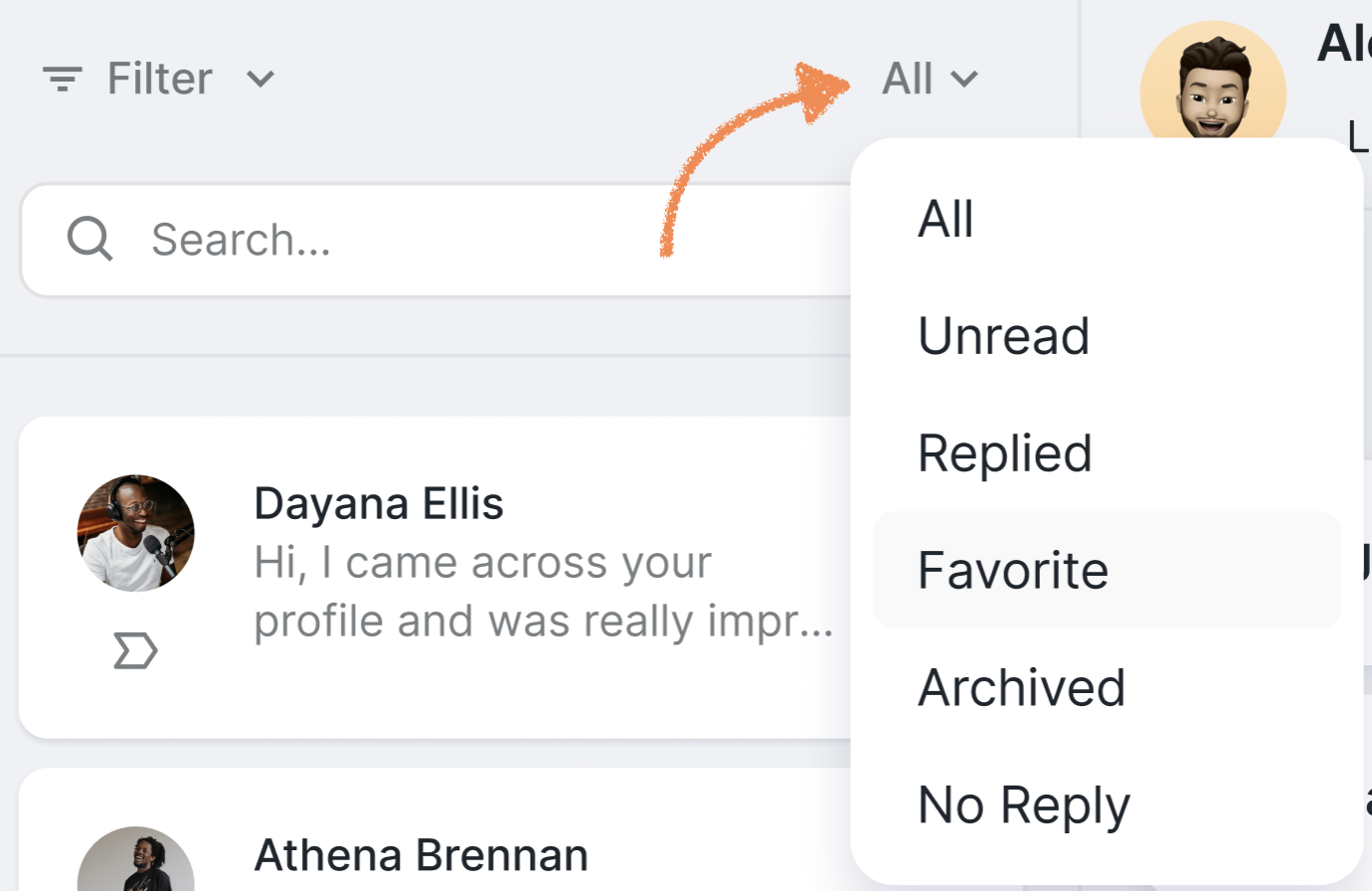
All: displays all conversations;
Unread: shows conversations with unopened messages;
Replied: displays conversations where prospects have replied;
Favorite: displays only the conversations that you favorited;
Archived: shows archived conversations;
No reply: shows conversations where the prospect opened your message but did not reply.
Please note: if you archive a conversation and the prospect sends a new message, the conversation will remain archived and will not be moved to Replied.