How to Use Saved Replies
Last updated: October 23, 2026
Want to save time when messaging your prospects? With Saved Replies, you can save frequently used messages and reuse them whenever you need them.
How to create and use Saved Replies
1. Open a conversation
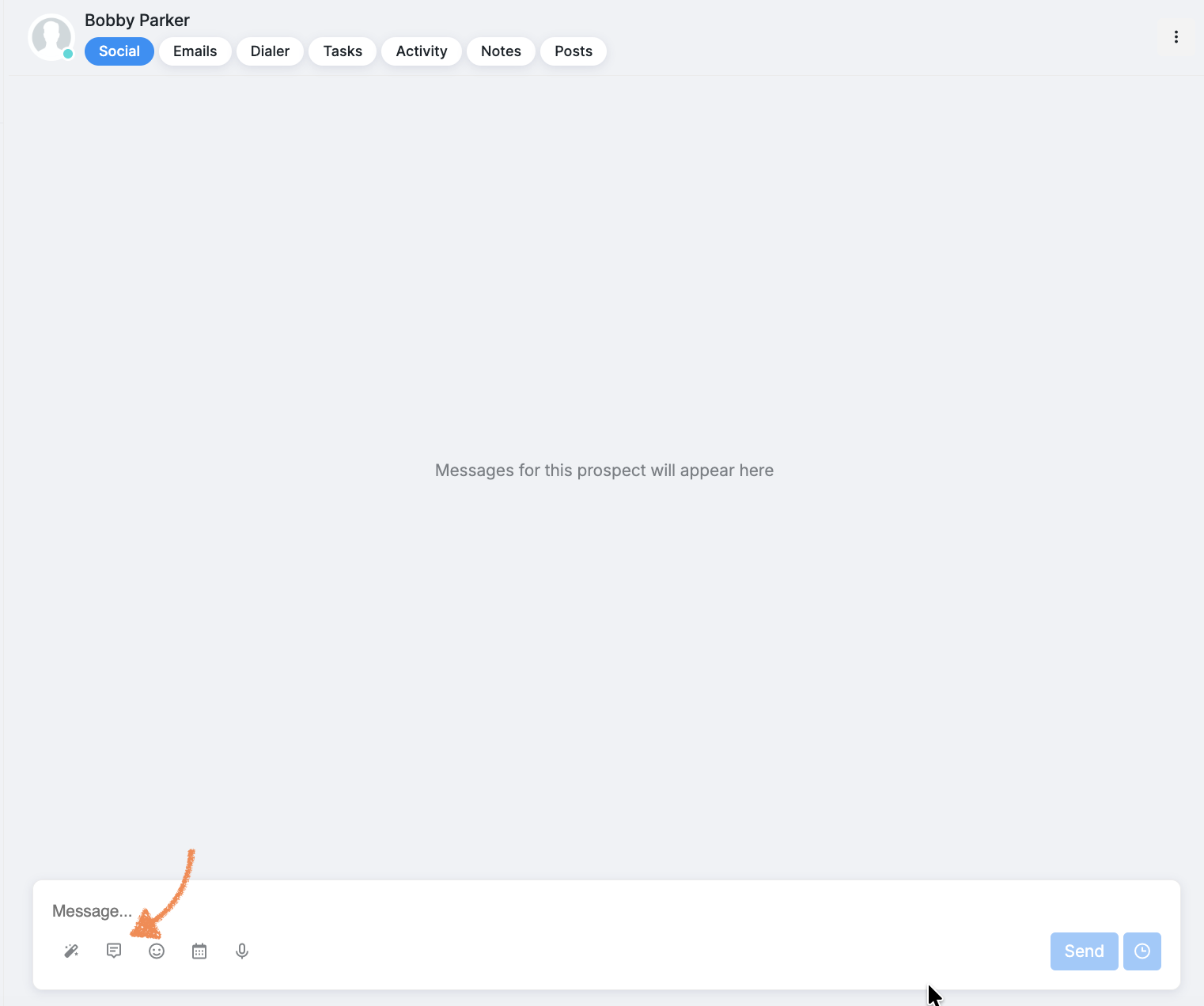
Go to the Inbox tab and open a conversation with a prospect. Make sure you’re in the Social tab.
2. Open Saved Replies
Below the message composer, find the small message icon in the toolbar and click it to open your saved replies.
3. Add your first reply
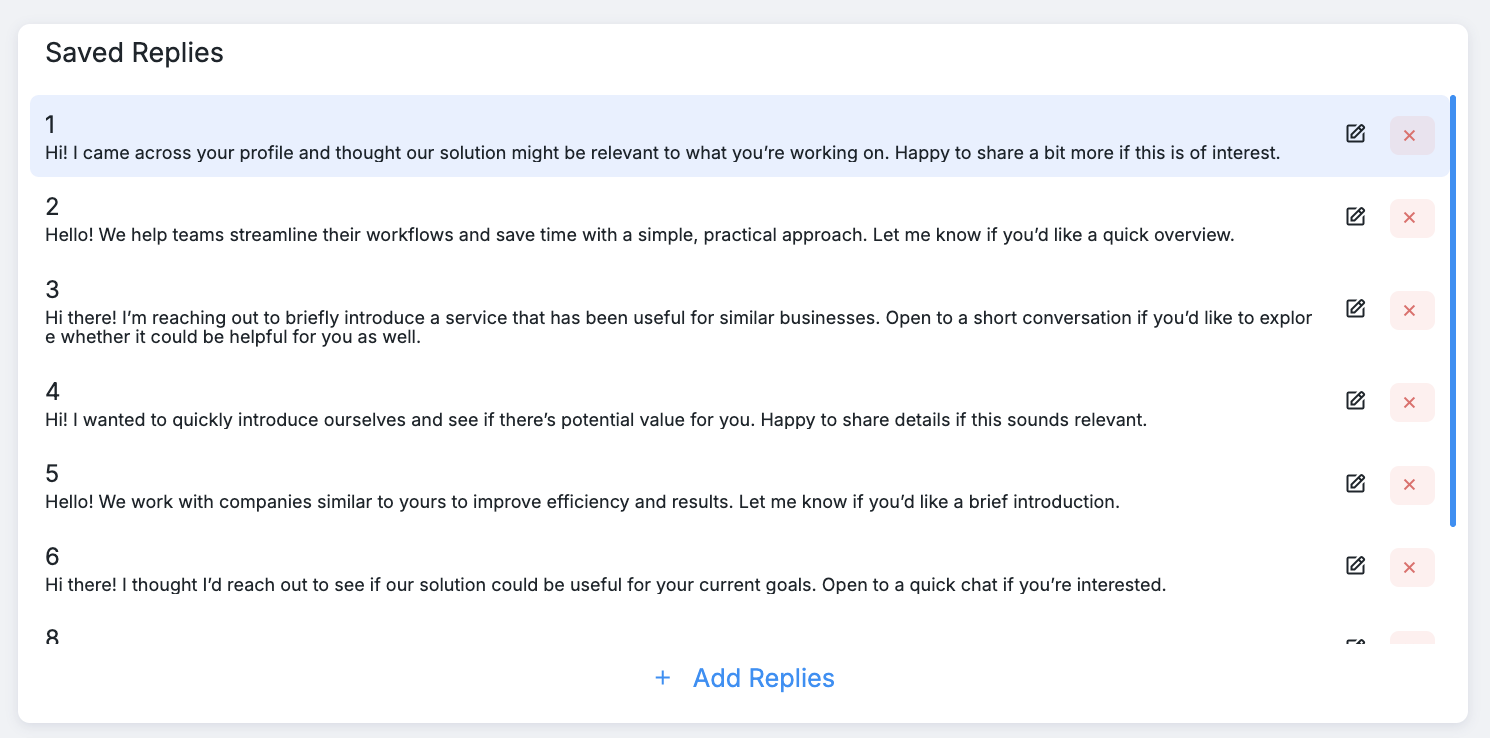
Click + Add Replies to create a new saved reply.
4. Name your reply and write your message
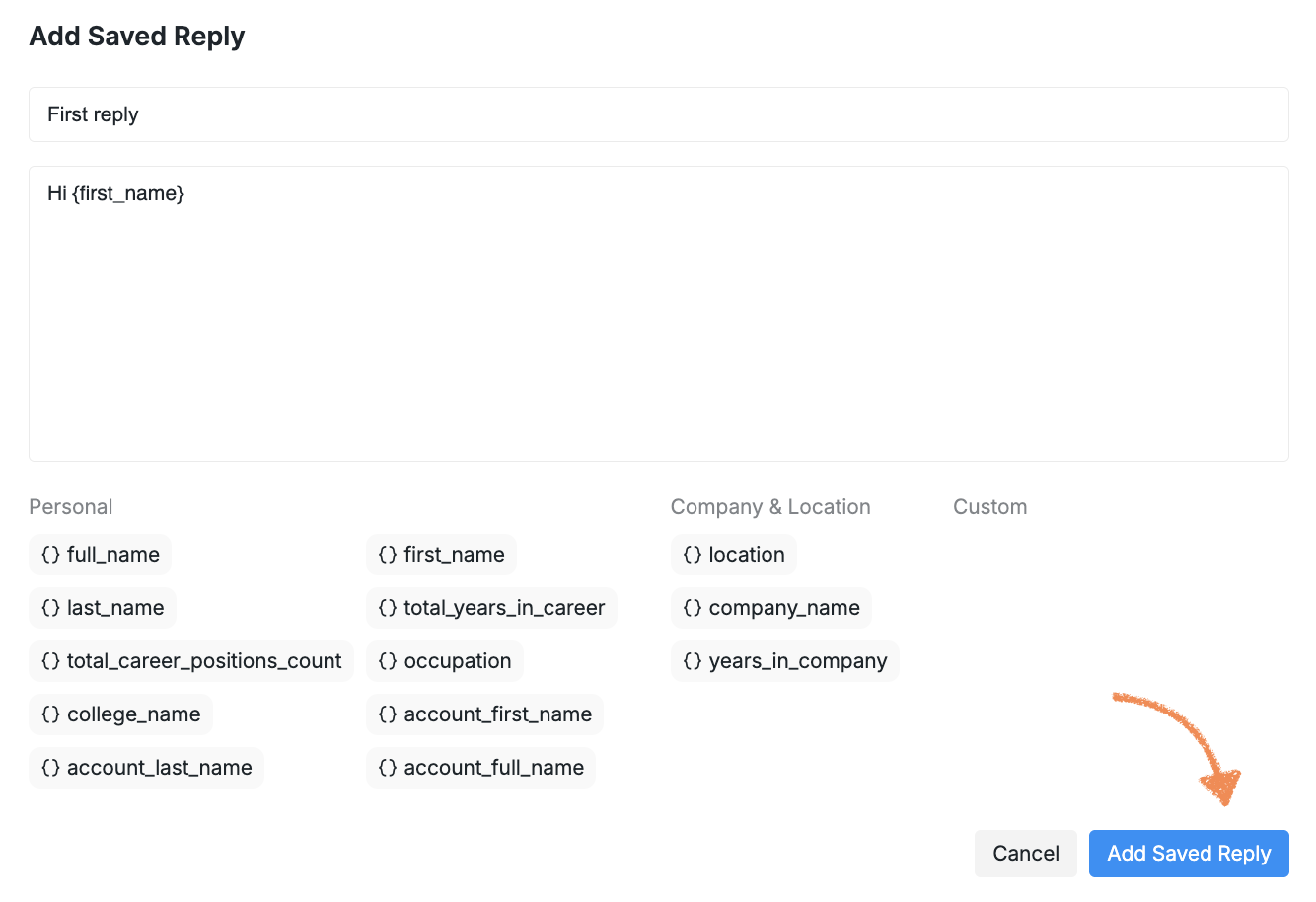
Give your reply a name so you can easily find it later, then enter the message text in the body field.
5. Save and reuse your reply
Click Add Saved Reply to add your reply to the list.
Next time you need it, simply open Saved Replies and select the message you want to use.
Managing your saved replies
Need to update a message or remove one you no longer use? You can edit or delete existing saved replies from the same Saved Replies menu.

Things to keep in mind
Shared across your workspace: All saved replies are available to everyone using the Social Accounts connected to your workspace.
Tied to the workspace: If you move a Social Account to another workspace, its saved replies won’t move with it. Saved replies are associated with the workspace, not the Social Account.
That’s it! Save your go-to messages once and keep your prospect conversations moving with less repetitive typing.